With Cognos Analytics 12.1.1, IBM has taken a major step toward simplifying how developers extend report functionality. One of the key enhancements in this release is the ability to seamlessly integrate Custom Controls directly through the Accelerator Catalog, eliminating the need for manual file deployments or backend configuration.
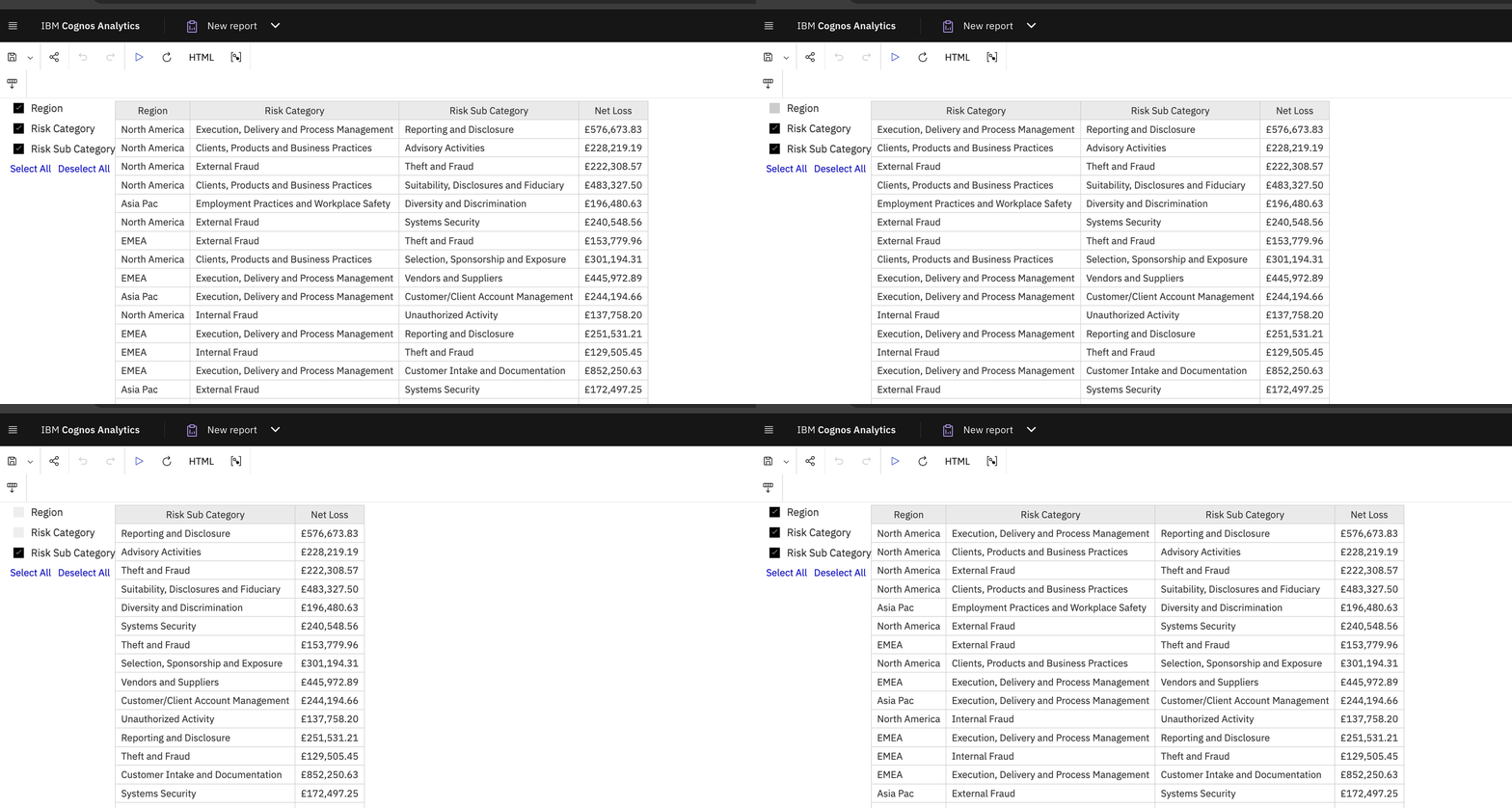
Importing custom control
- Go to IBM Cognos Accelerator Catalog link
- Lets take a example of Dynamic List, search for Dynamic List
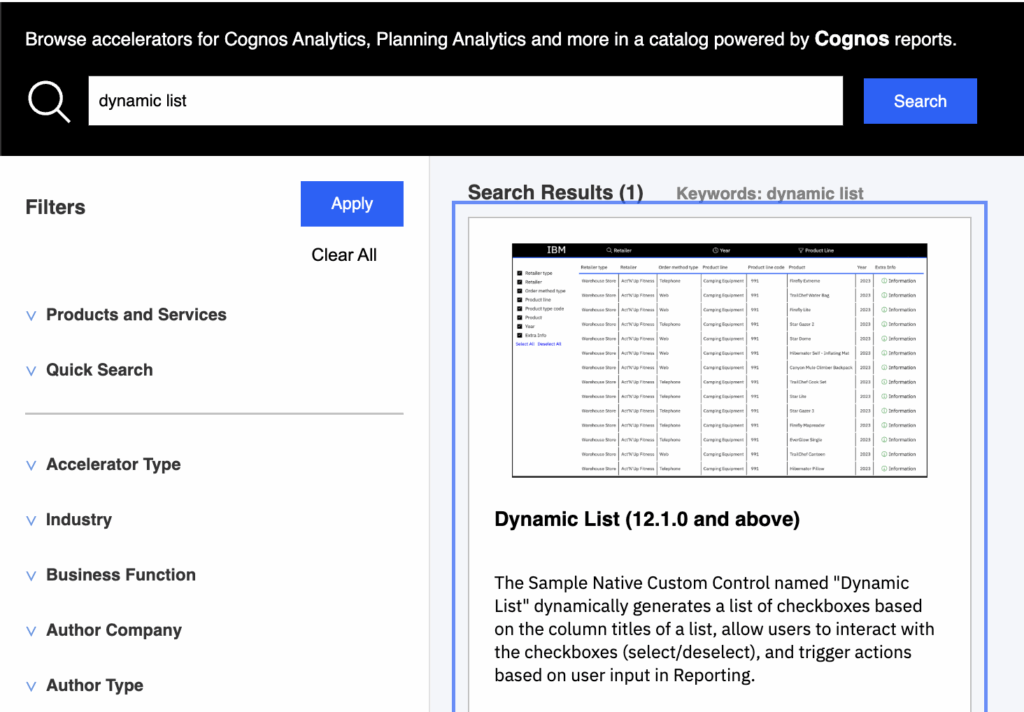
- Or use direct link of Dynamic List for quick access
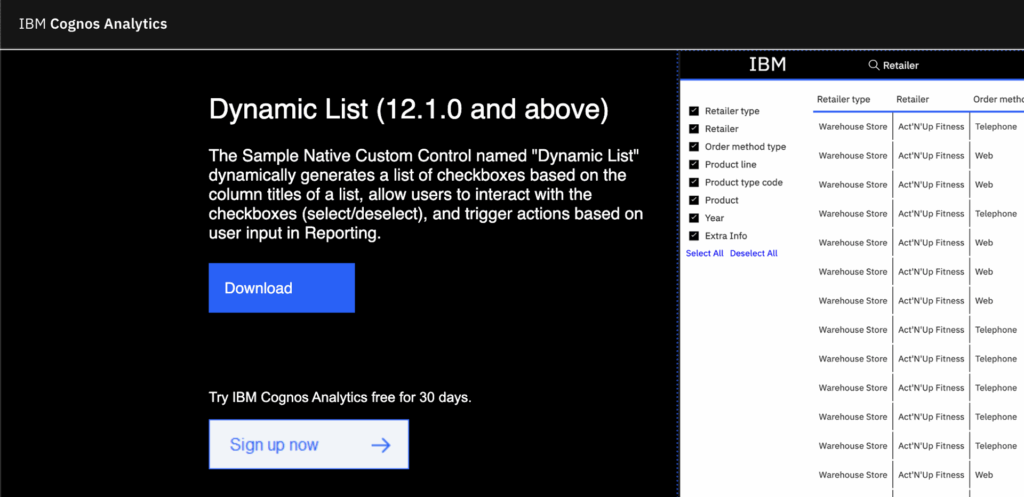
- Clicking on Download will download the zip file.
- Open Cognos Analytics and go to Menu > Manage > Customization > Extensions
- Click on Import
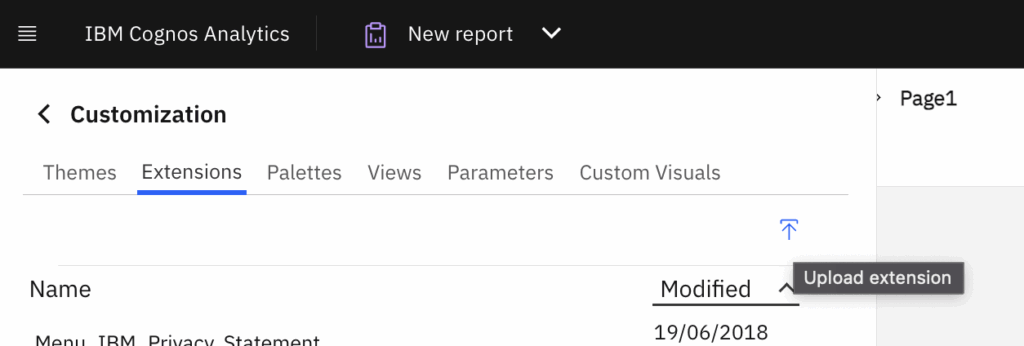
- Select the downloaded Zip file and click Open
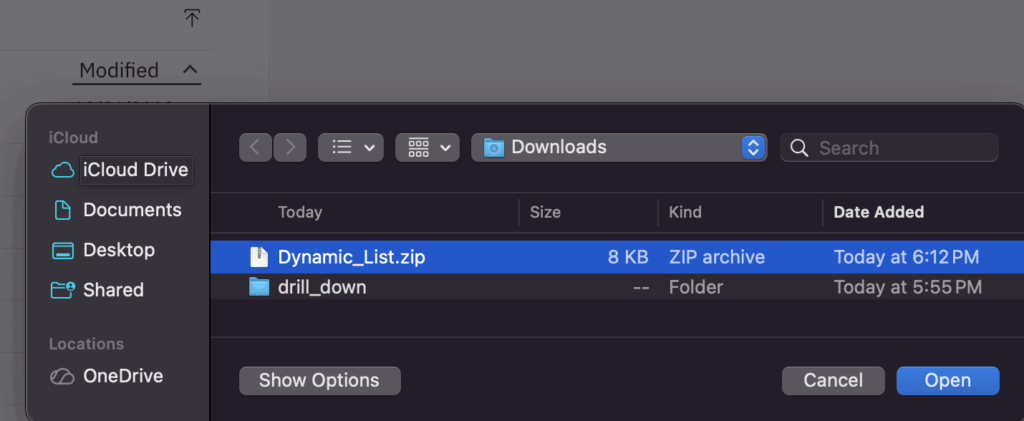
- Once imported, the custom controls will be available in the Extensions section.
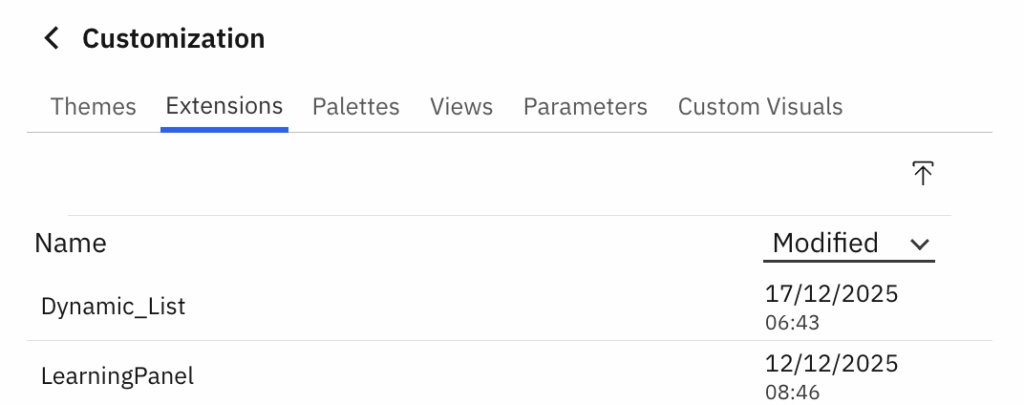
Custom control use in report
- Now to use the custom controls in report, it would appear in ‘Authored Controls’ section in report toolbox.
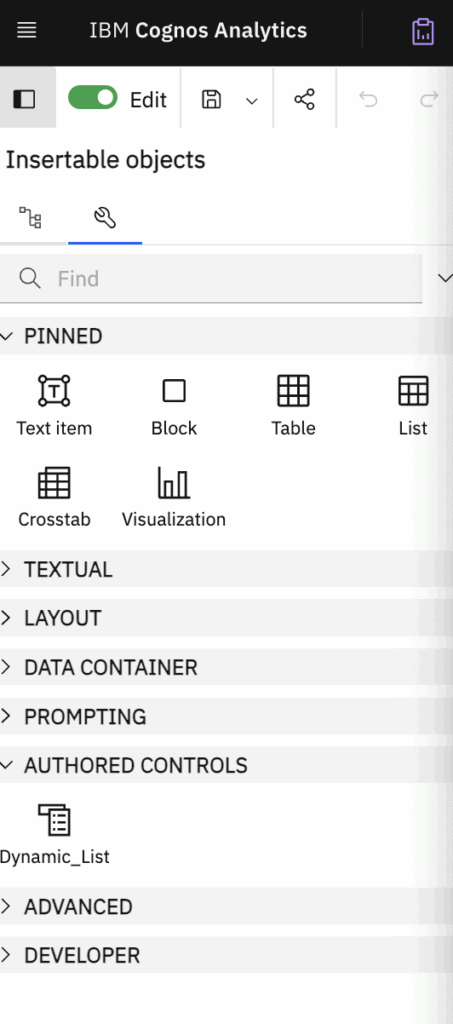
- Drag “Dynamic List” Native Custom Control to desired position in reporting.
- Select the custom control, then click “+” in the toolbar to create a dataset.
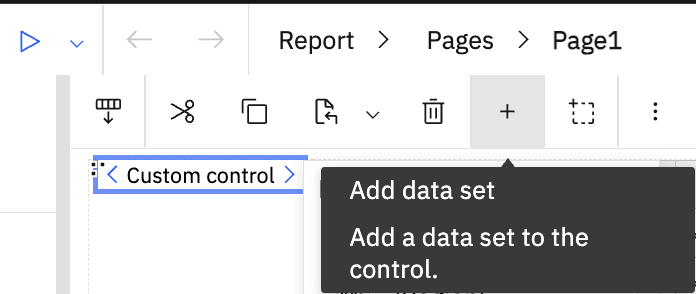
- Select the dataset and add the categories and metrics to be used in report list output
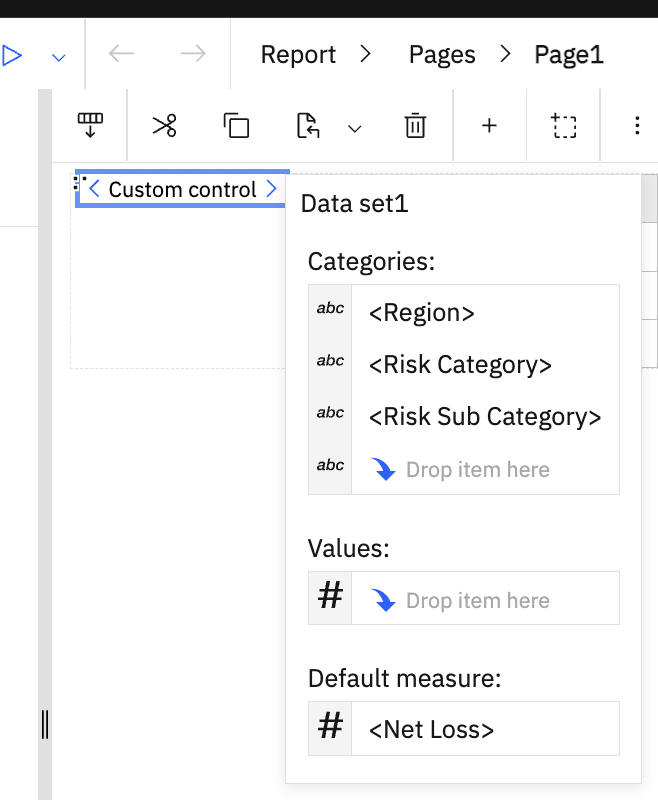
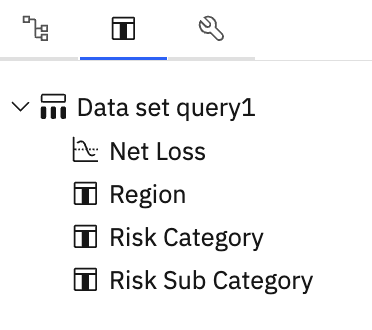
- It will generate the Dataset query.
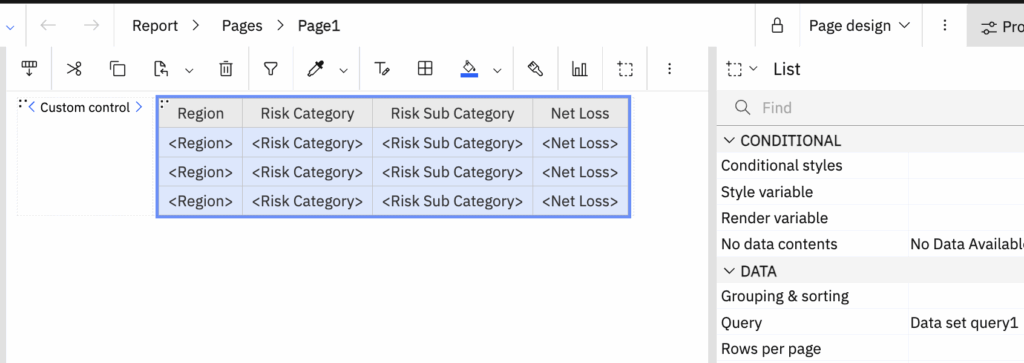
- Use this same dataset query to create a list next to the custom control
- Now select the Dynamic List control again, and open its properties.
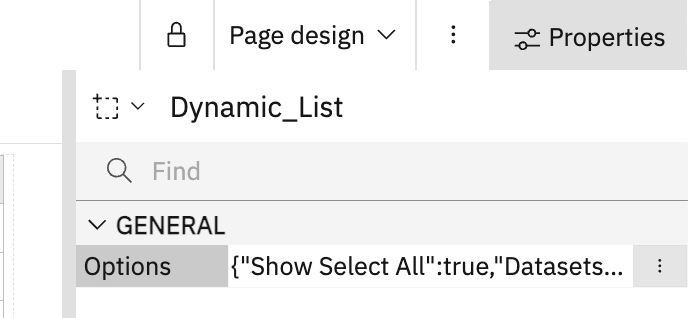
- Edit the “options”, and set “Datasets” to the name of your list.
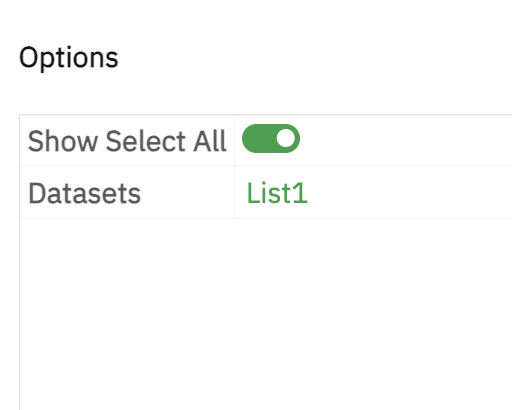
- Save and run the report.
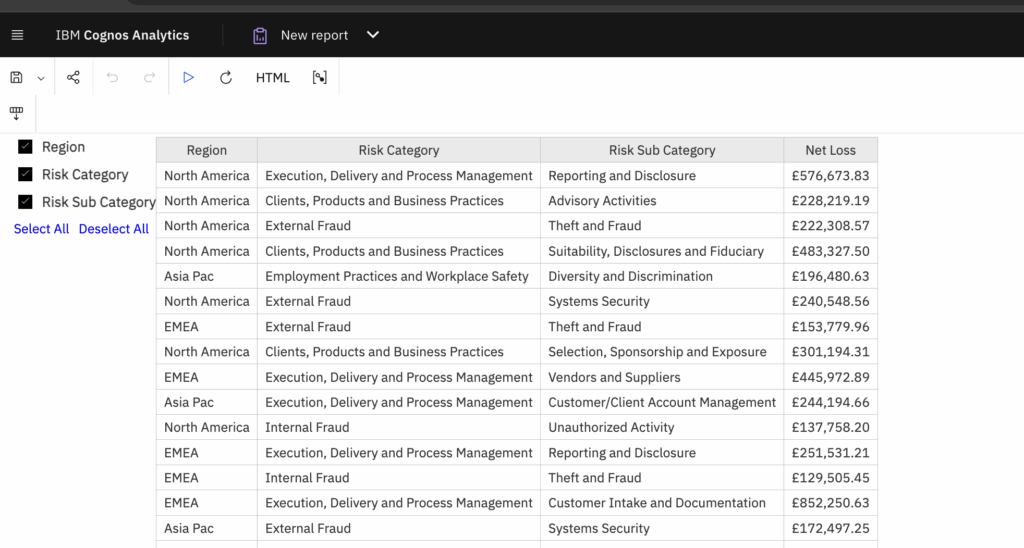
- Selecting or deselecting the checkboxes in the left panel dynamically updates the list output.


