Generative AI Agents in Cognos are AI-powered assistants that understand natural language and help users interact with their analytics content. Instead of manually building queries, navigating interfaces, or remembering report paths, users can ask questions conversationally and let the AI agent respond with results, insights, or even whole reports.
As per IBM release notes and early previews, the 12.1.1. GenAI Agents include:
- Agent for recommending reports: Helps users find existing reports based on a plain-English query.
- Agent for summarizing reports: Reads a report and explains what’s going on in plain language.
- Agent for creating reports: Guides users to build a report conversationally – potentially reducing time to insight.
- Agent for sharing content: Can distribute reports via email or collaboration apps like Teams/Slack.
Quick Overview Of Agentic AI
To explore AI Agents in Cognos Analytics 12.1.1, first we have to make sure that we have it enabled for our environment. Please note that It is available only in Cognos Analytics on Cloud On-Demand for trial users in the U.S., Frankfurt, Amsterdam, and Tokyo regions only.
Additionally, using plain English is important for AI efficiency. Optimized prompts are recommended to achieve the best performance from agents.
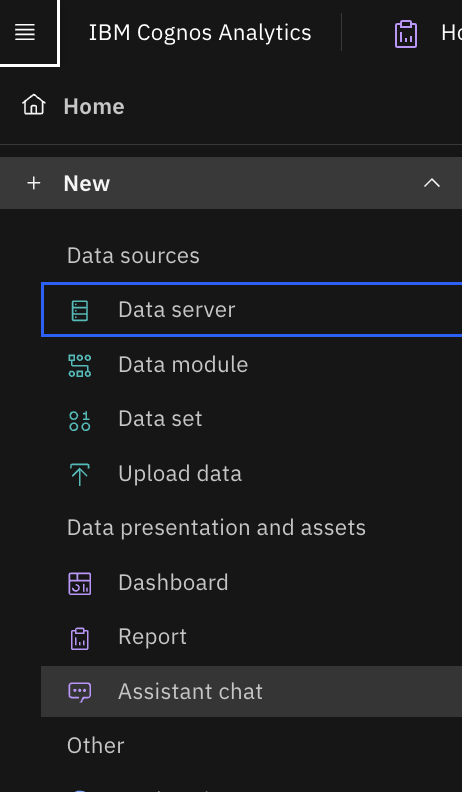
- In Cognos Analytics, the Agentic AI Assistant chat can be opened by navigating to: Menu → New → Assistant chat
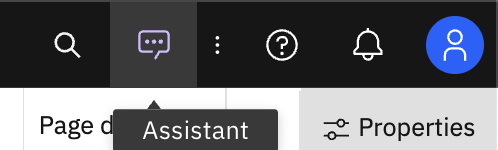
- OR we can also open it using Assistant icon in right top.
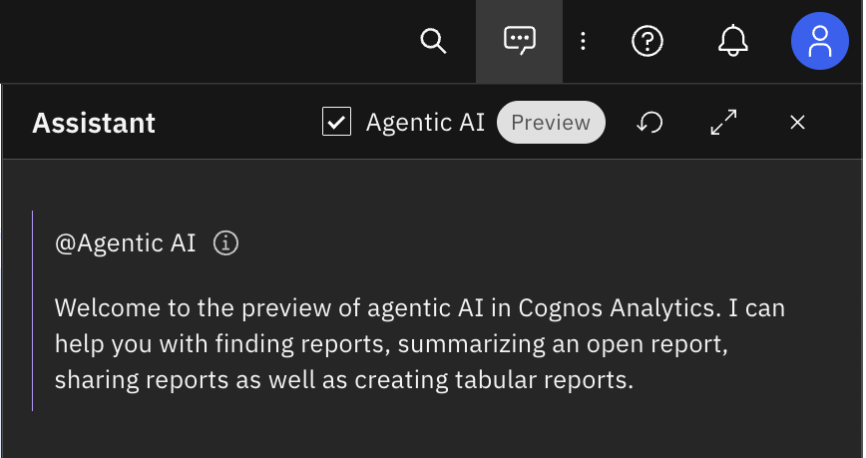
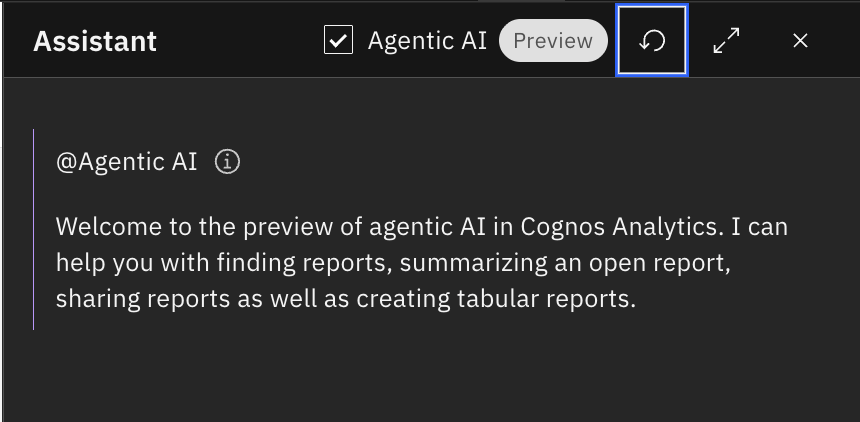
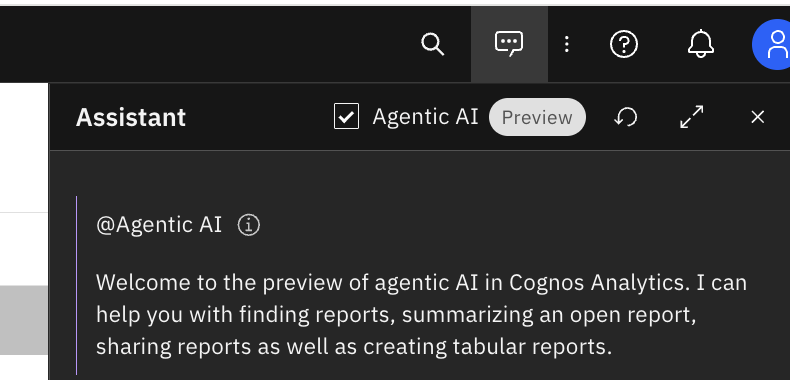
- Once the Assistant chat is opened, an ‘Agentic AI’ checkbox appears at the top of the Assistant window, along with a ‘Preview’ label.
- Note: This indicates that Agentic AI is currently in preview mode.
- If we uncheck ‘Agentic AI’, it behaves like a normal Assistant and asks for data source to select first
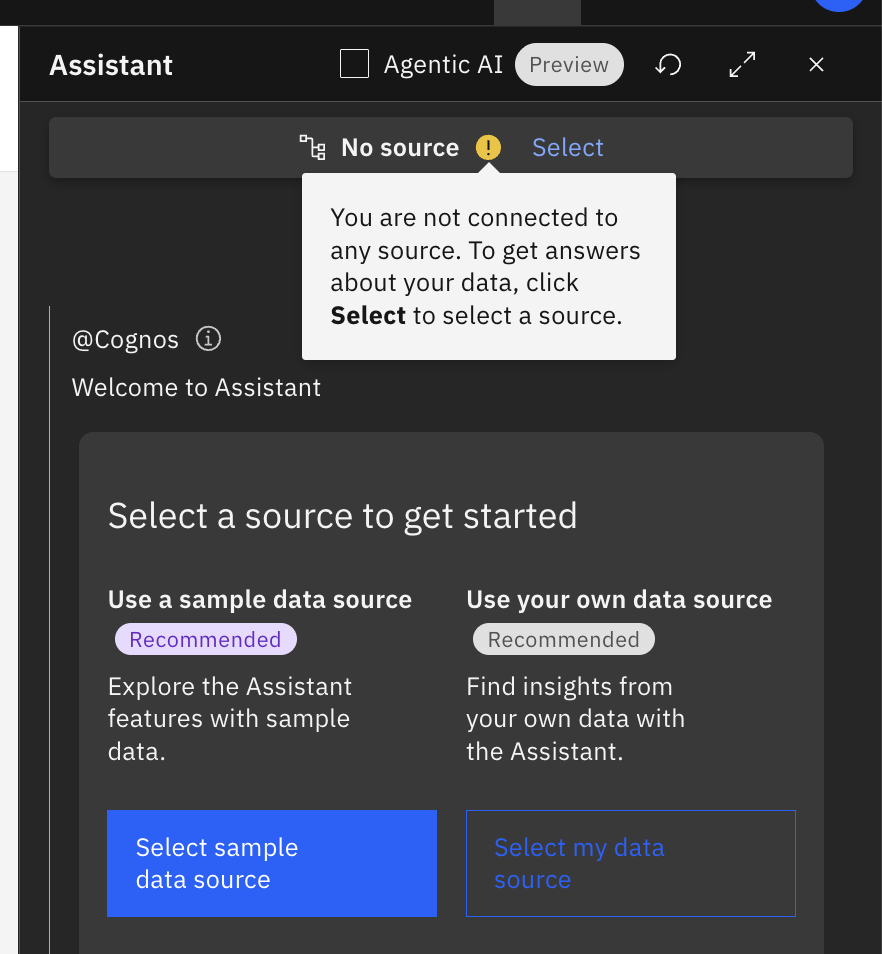
- Now lets try one of the sample data source.
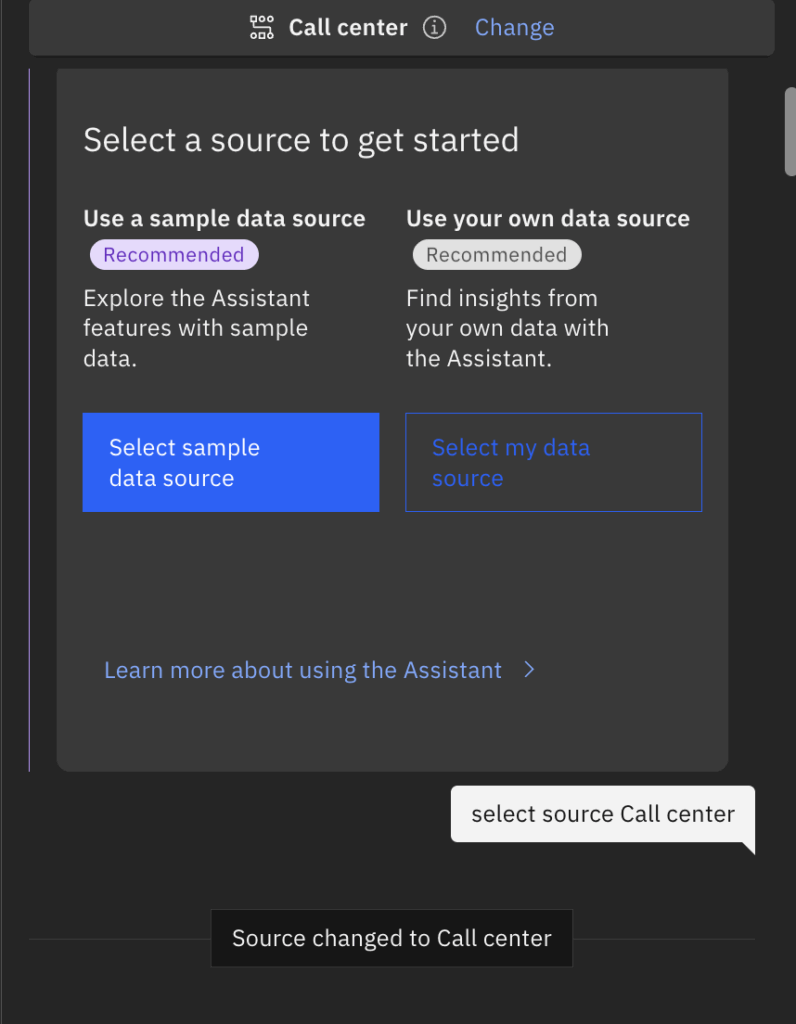
- It shows all the relevant fields of Call center data source and we can chat on top of this fields to get the details.
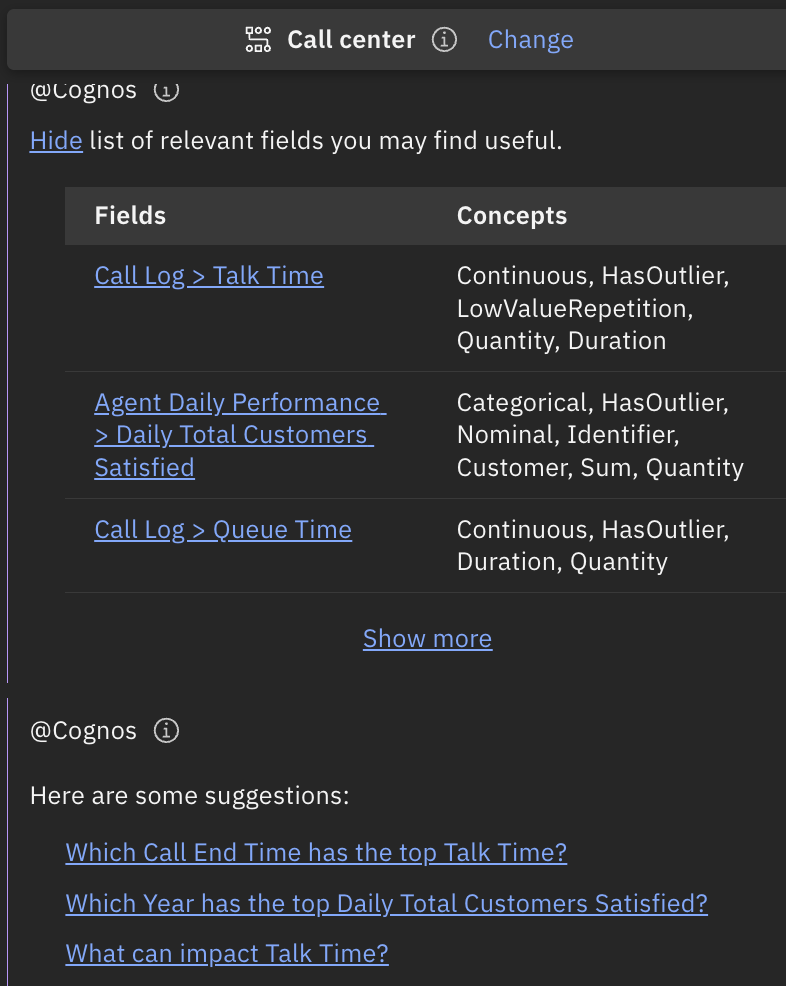
- If we take one of these suggested questions:
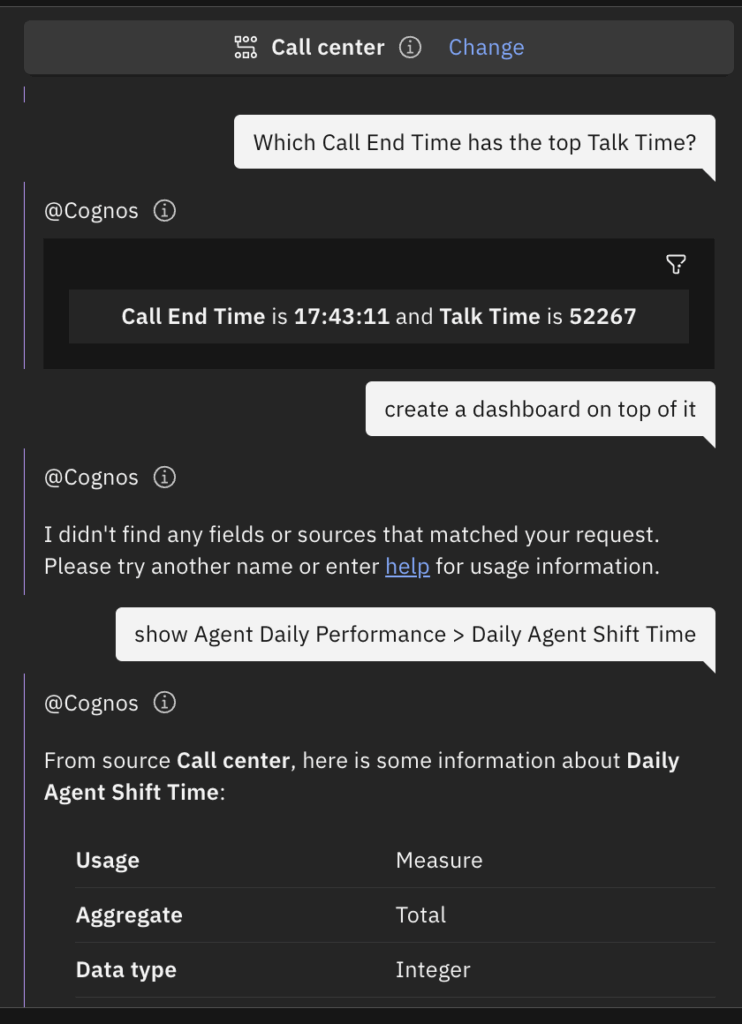
- Clicking ‘Agentic AI’ checkbox again, takes us back to standard conversation screen
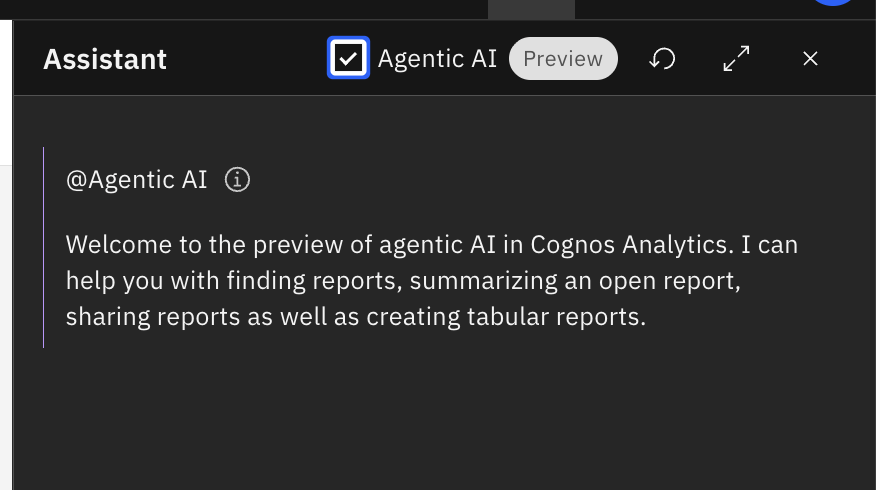
Agent for recommending reports
- Open the Assistant panel and select the Agentic AI Preview checkbox.

- In the chat, enter ‘How is my revenue trending compared to projections?’
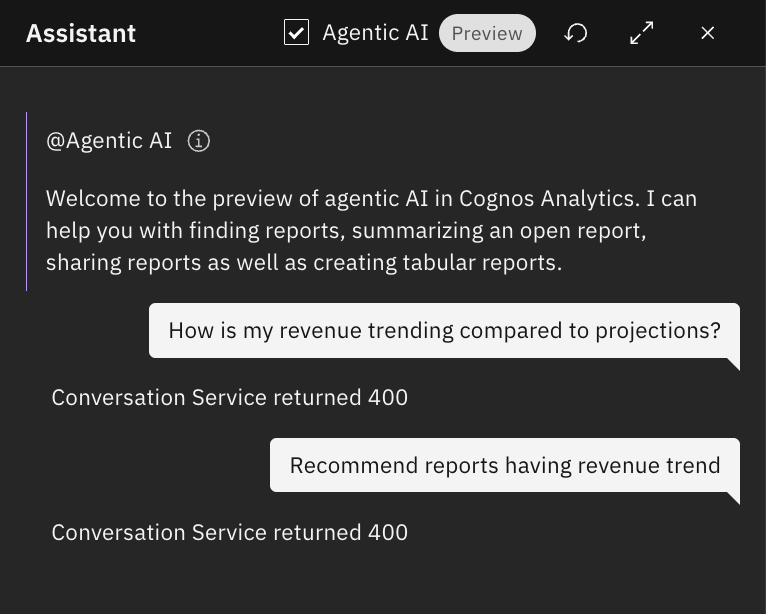
- Ideally, it should return a list of reports most relevant to our query. However, at the time of writing this blog, the feature was not working and was returning only a conversation service error.
Agent for summarizing a report
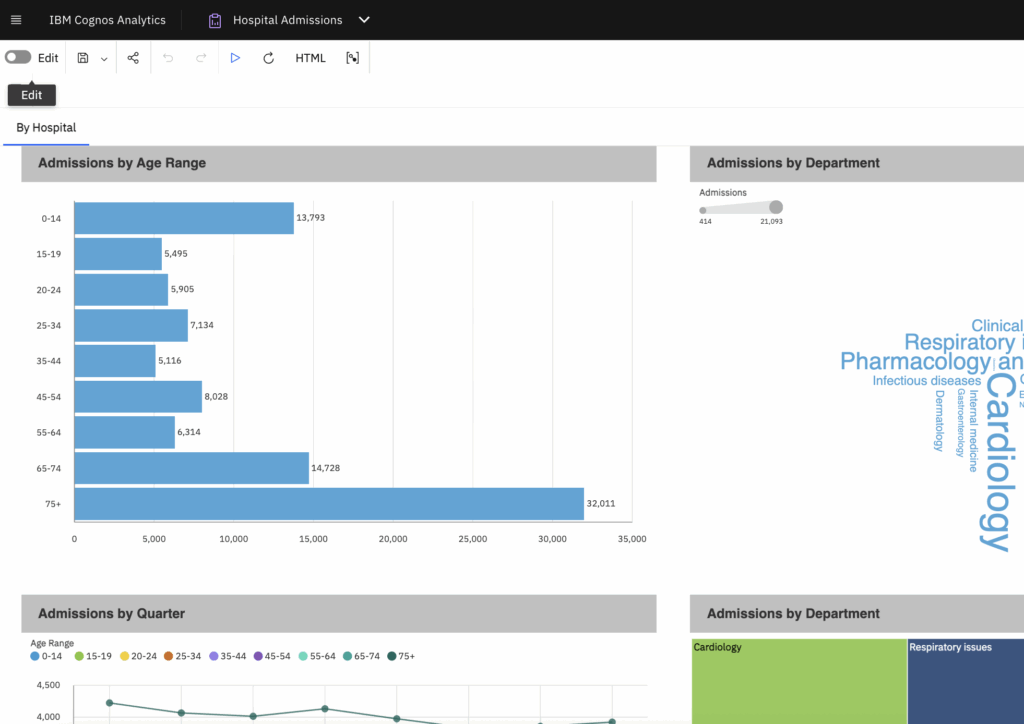
- We opened the Hospital Admission sample report in Cognos, which contains prompts.
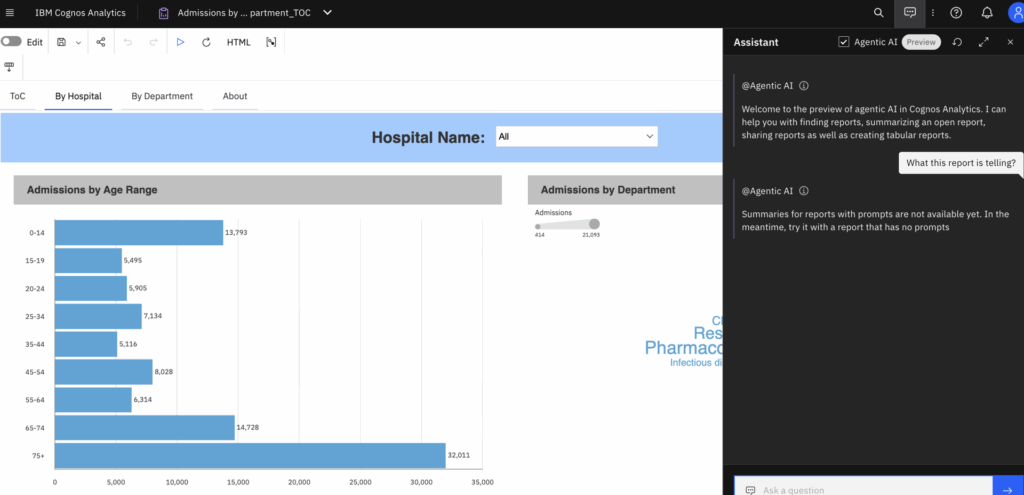
- As indicated in the snapshot above, the current preview mode is limited to generating summaries only for reports without prompts.
- Therefore, we opened another report that does not contain any prompts and ran Agent AI again.
- This time, it worked flawlessly and generated the summary based on the report output.
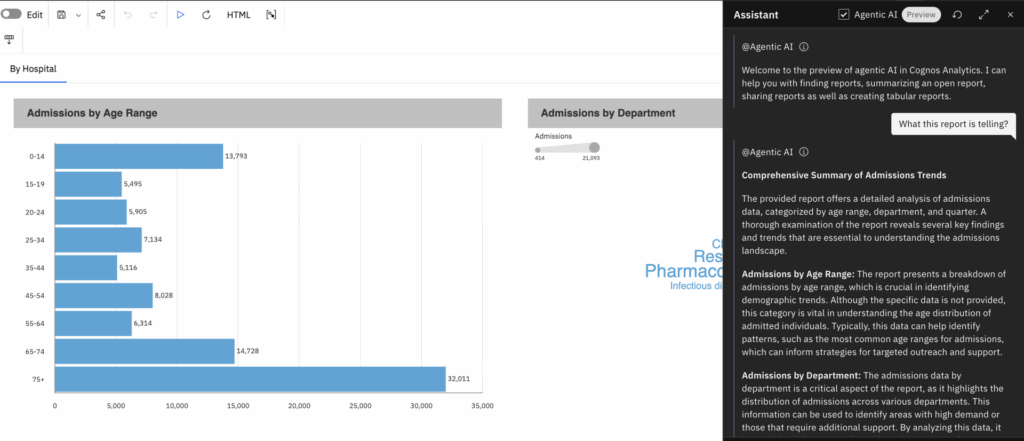
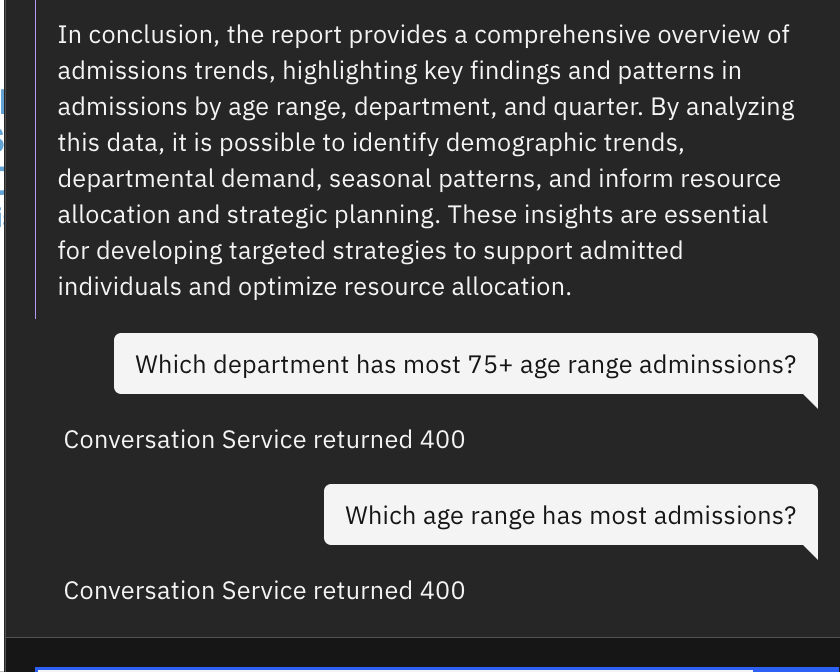
- However, we observed that the preview version has certain limitations and fails to return the expected responses when more specific queries are submitted.
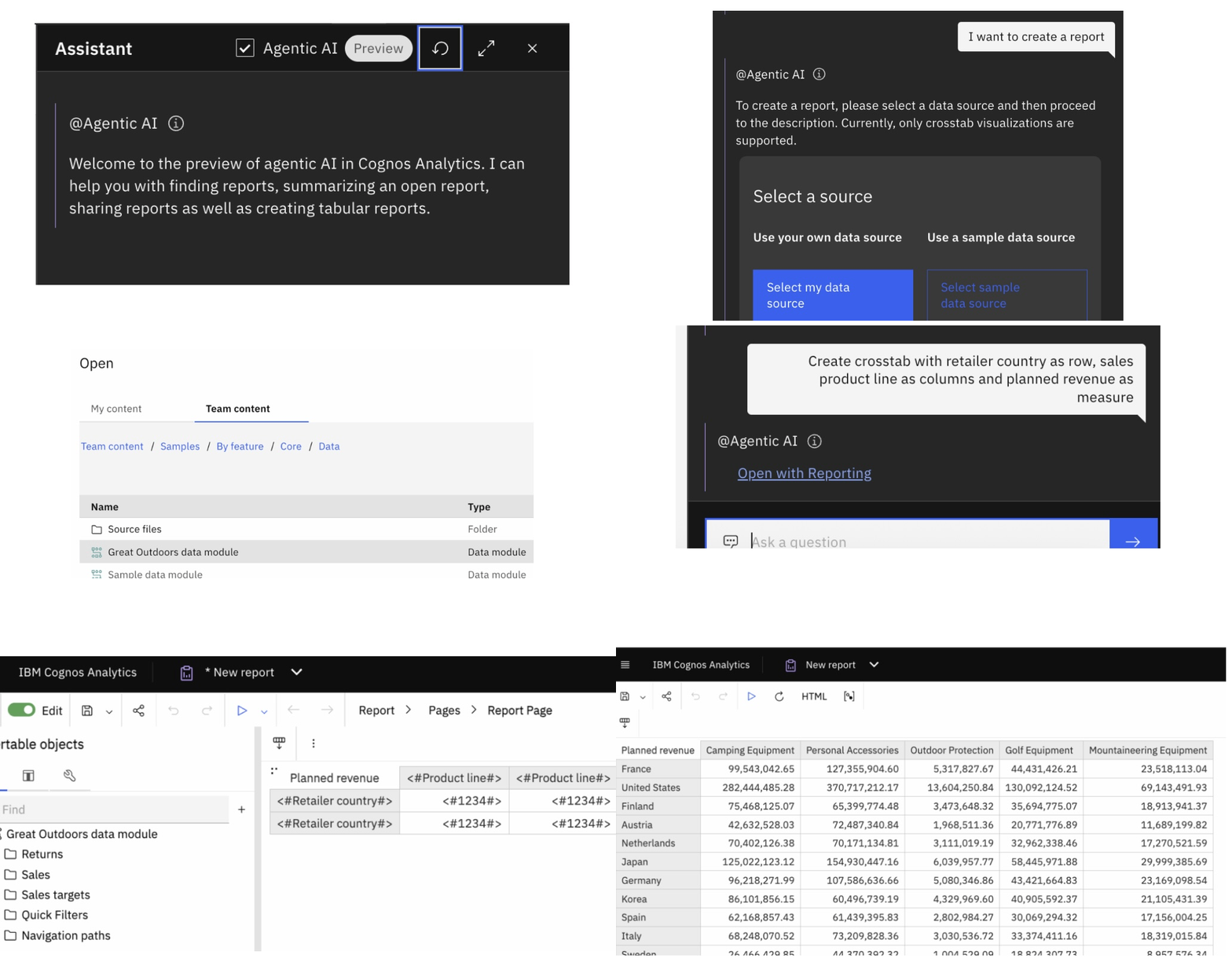
Agent for creating a report
- Open the Assistant and enable the Agentic AI in it
- In the chat, enter ‘I want to create a report’.
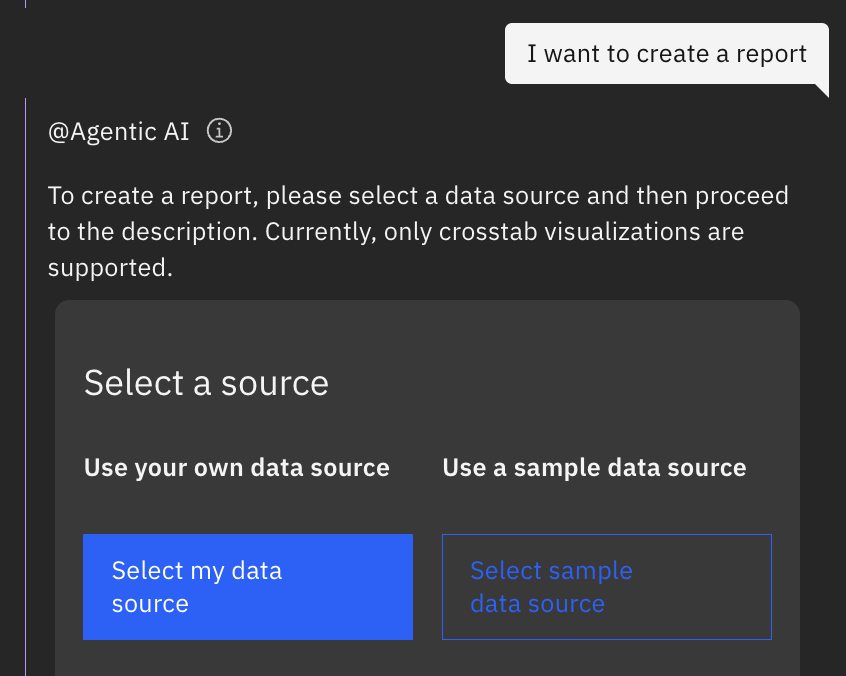
- Click the Select my data source button.
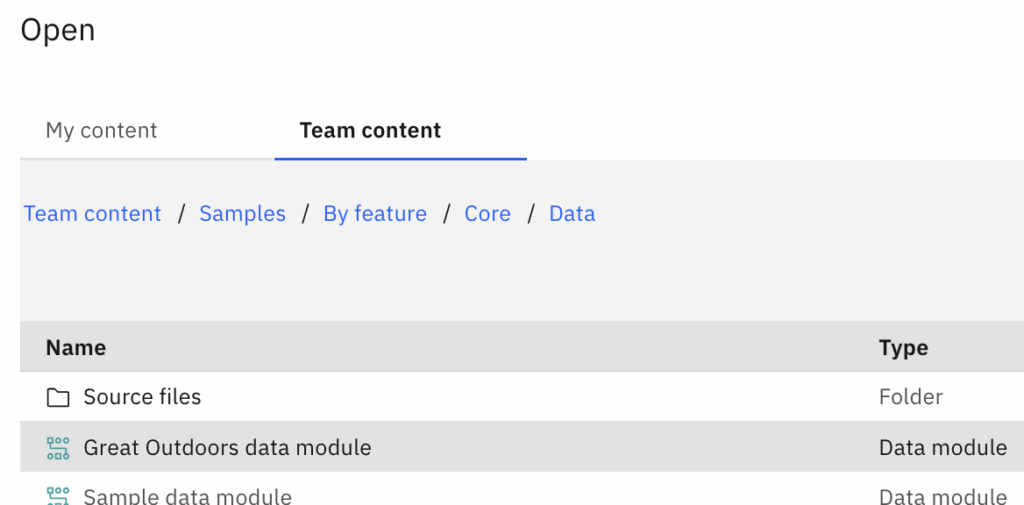
- In the Open window, go to Samples > By feature > Core > Data, and open the ‘Great outdoors data module’ data module.
- Agentic AI analysed the selected data source and provides the response as shown below
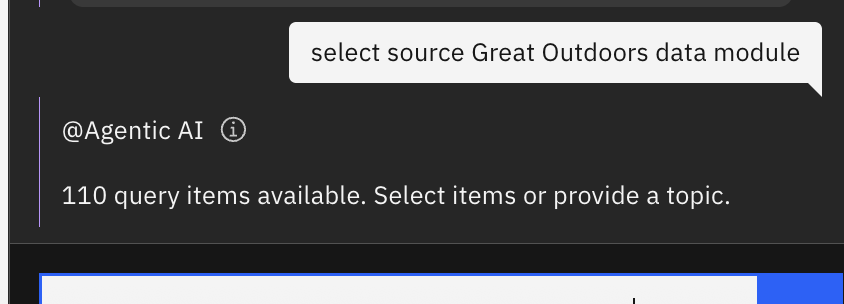
- Now, ask ‘Analyze revenue by country and product line’ using chat input box.
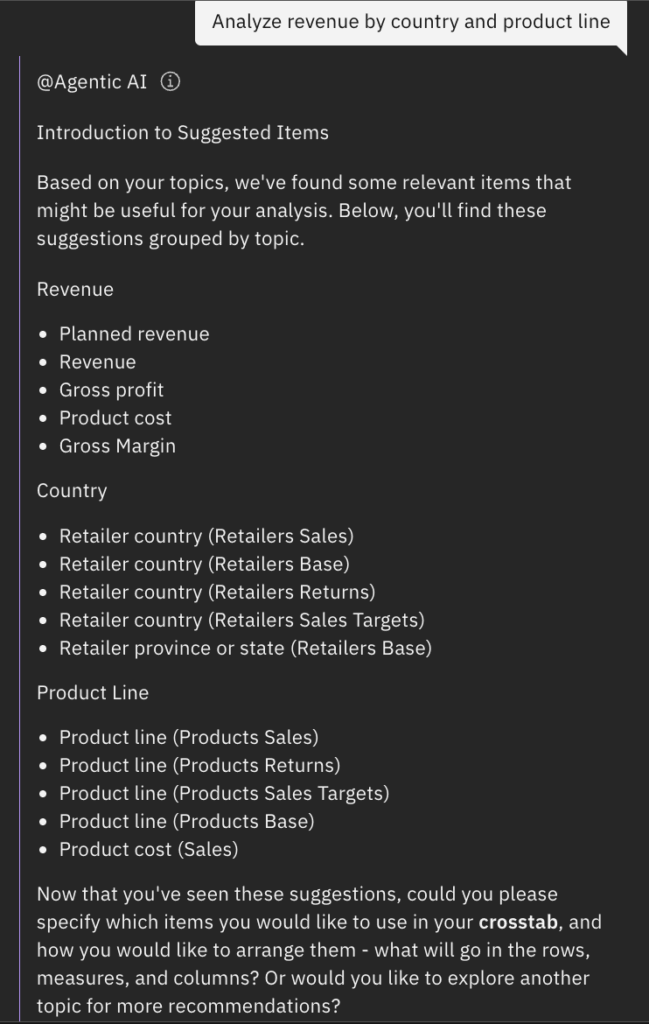
- Agentic AI analyze the data and suggests the field names to select and generate the output
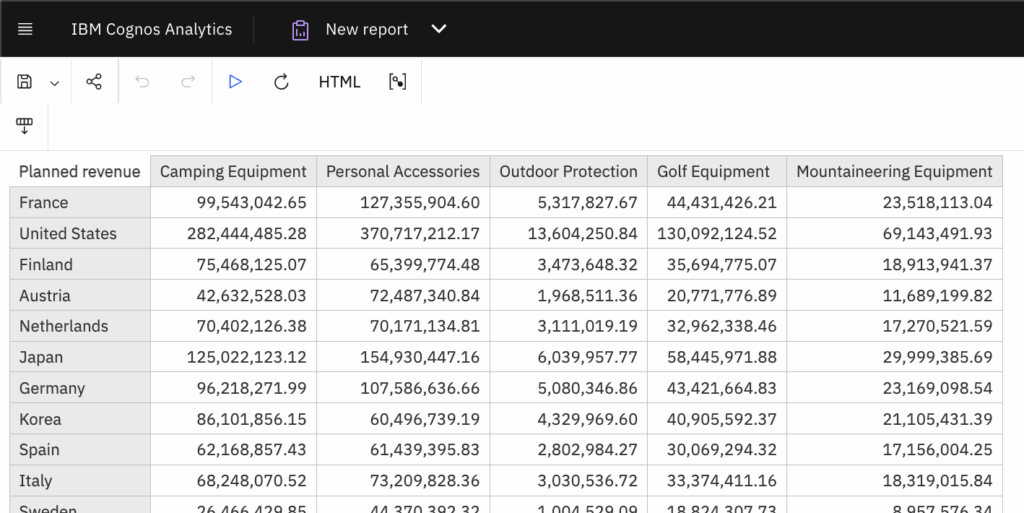
- Now enter ‘Create crosstab with retailer country as row, sales product line as columns and planned revenue as measure’ to create a crosstab.
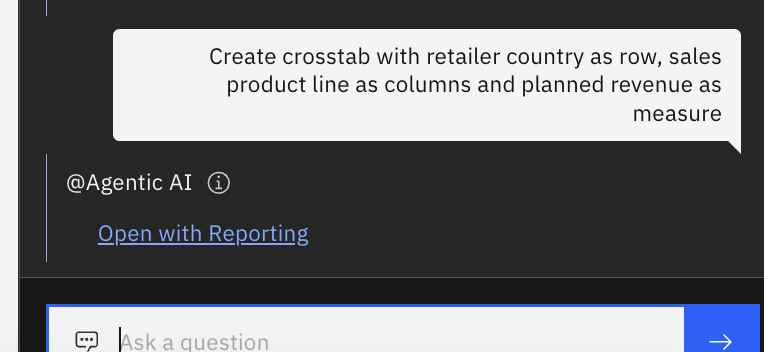
- Clicking ‘Open with Reporting’ takes us to report created by Agentic AI
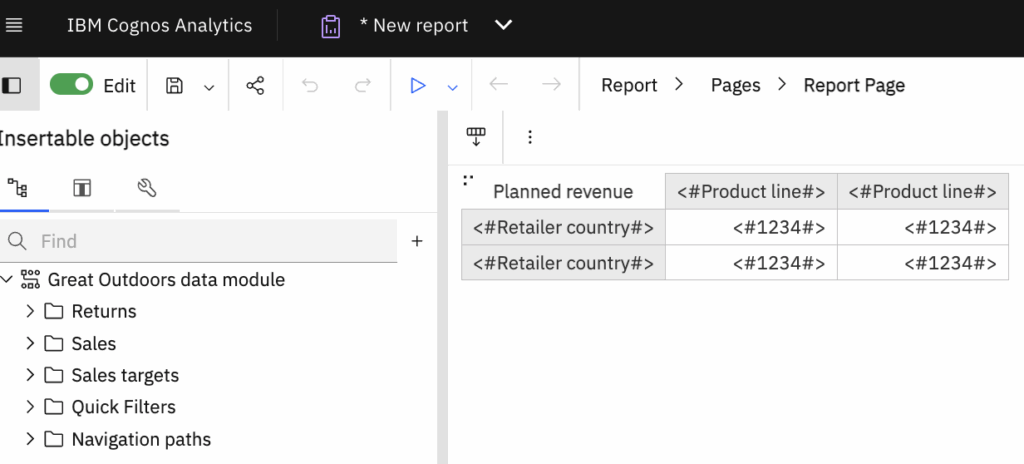
- Save and run the report to see the output
Agent for sharing content
- Lets now see an example of sharing a report by email with the assistance of agentic AI.
- Open a report.
- Open the Assistant panel and select the Agentic AI Preview checkbox.
- In the chat, enter Share this report.
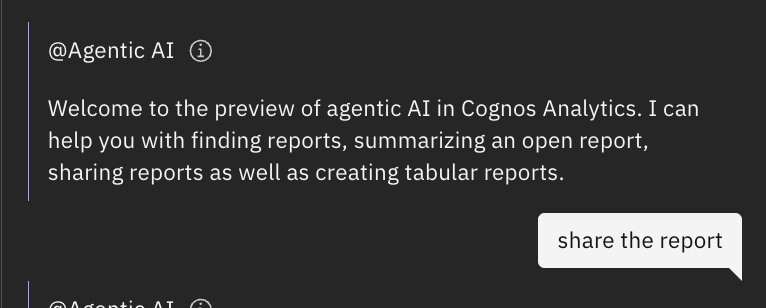
- Agentic AI should respond ‘Would you like to share via Slack or email?’ prompt
- However It is currently not working and returning the below response.
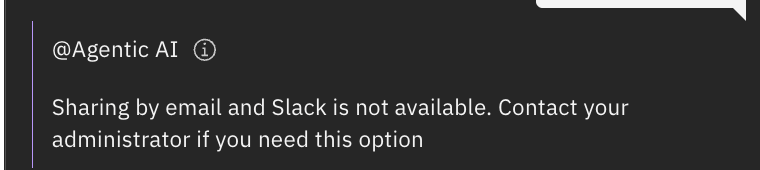
- If it responses correctly, we would enter Email to <RecipicientEmailAddress>.
- If we want to add a message in email, expand the prompt with the message.
- For example, enter Email to <RecipicientEmailAddress> and say ‘I like this report from Cognos Analytics’.


