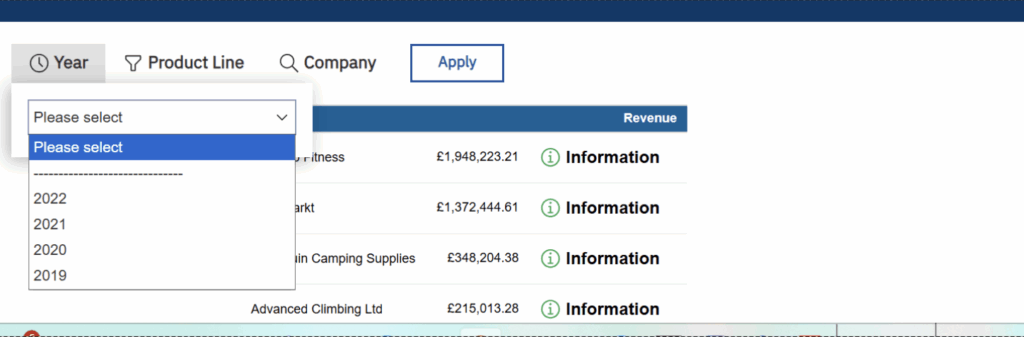
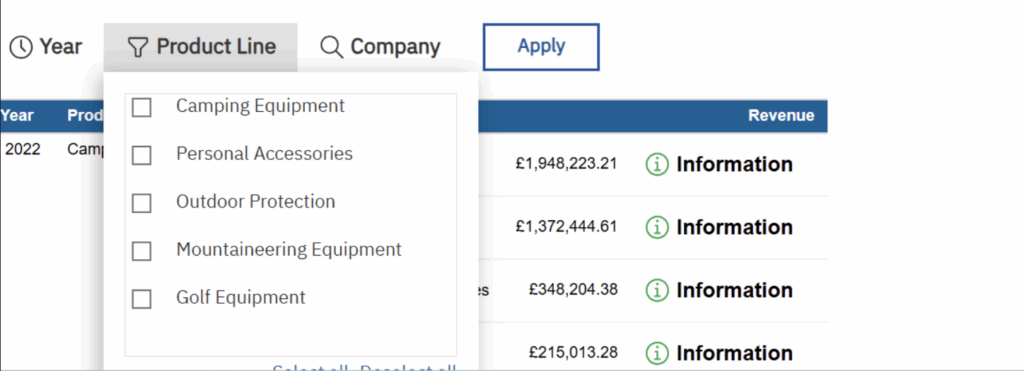
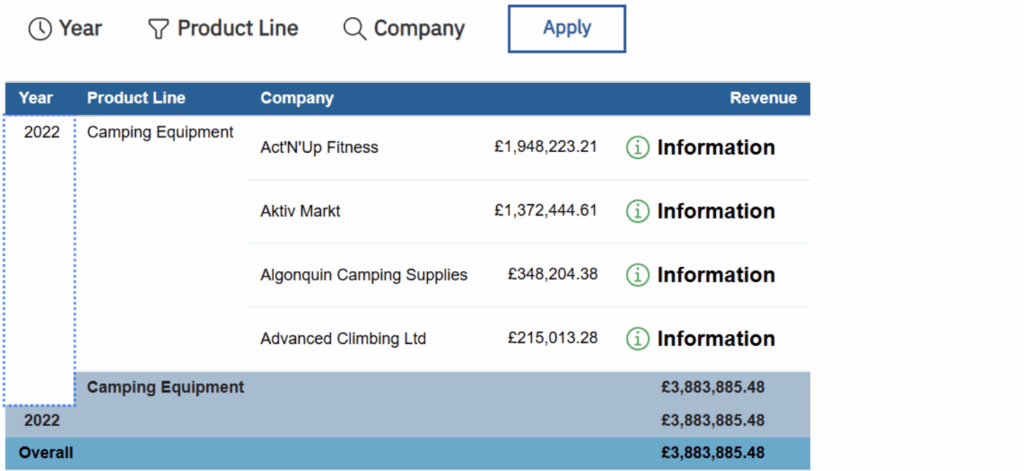
In this example, we will use native custom control popup. This Popup feature enables report and dashboard authors to present interactive content in a popup window. This native custom control popup enhances user experience by supporting cleaner layouts, reducing screen clutter, and enabling on-demand interactions.
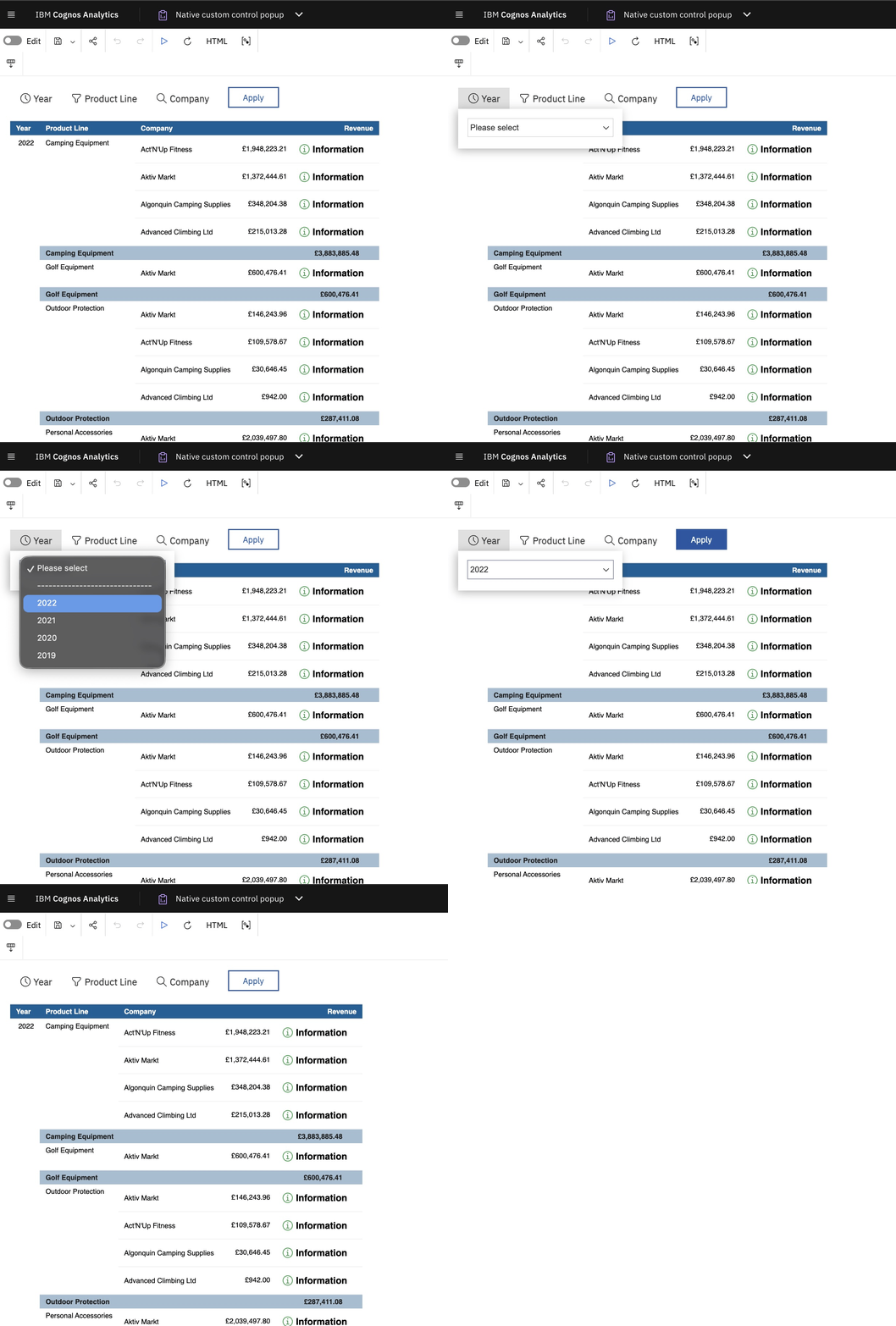
Steps to follow:
- Go to IBM Cognos Accelerator Catalog link
- And search for ‘Native custom control popup’
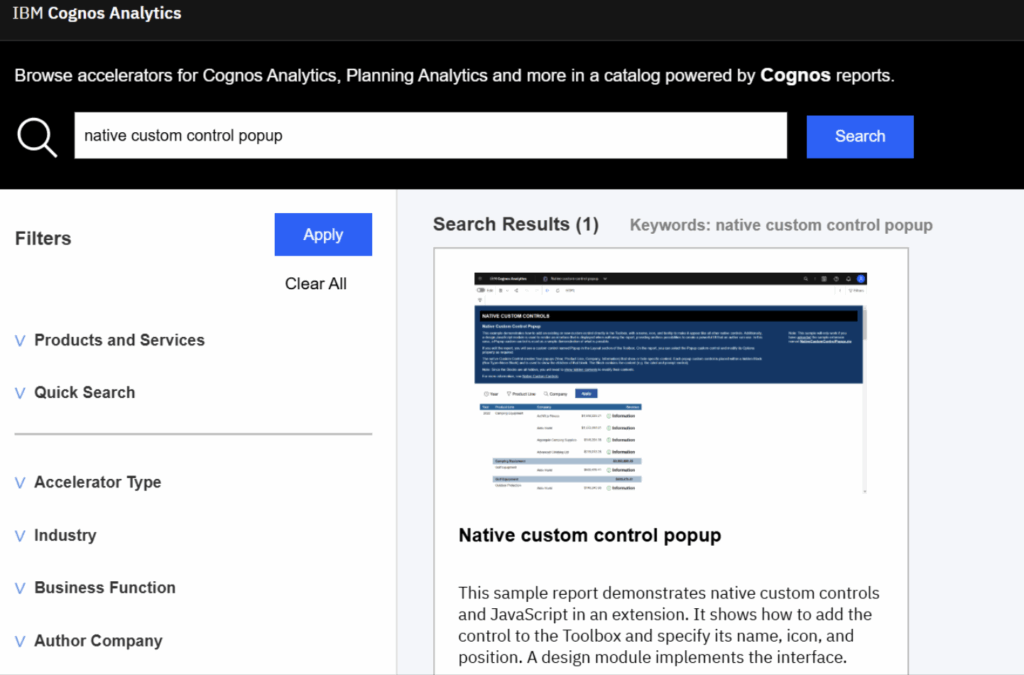
- Or we can use direct link of Native Control Custom Pop up for quick access
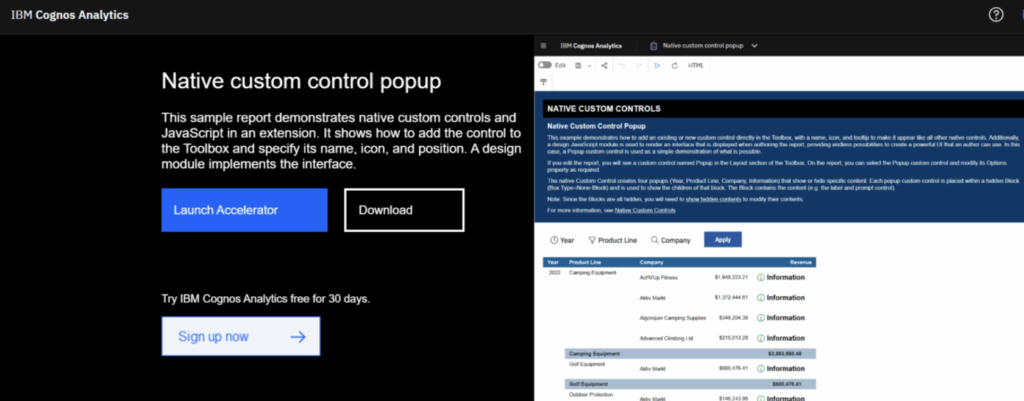
- Clicking on Download will download the zip file.
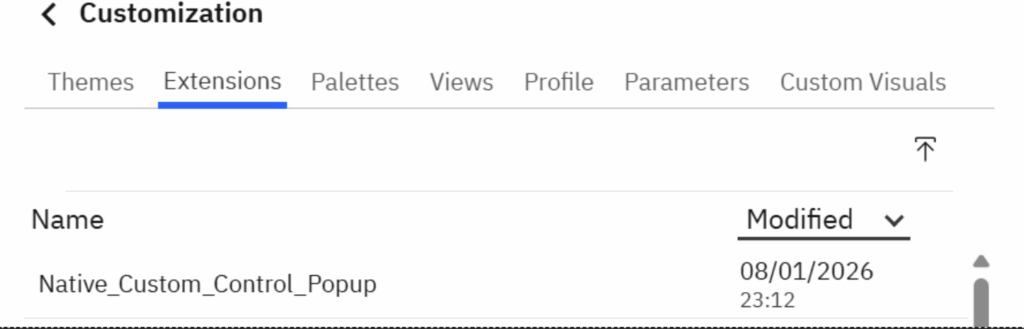
- Open Cognos Analytics and go to Menu > Manage > Customization > Extensions
- Click on Import
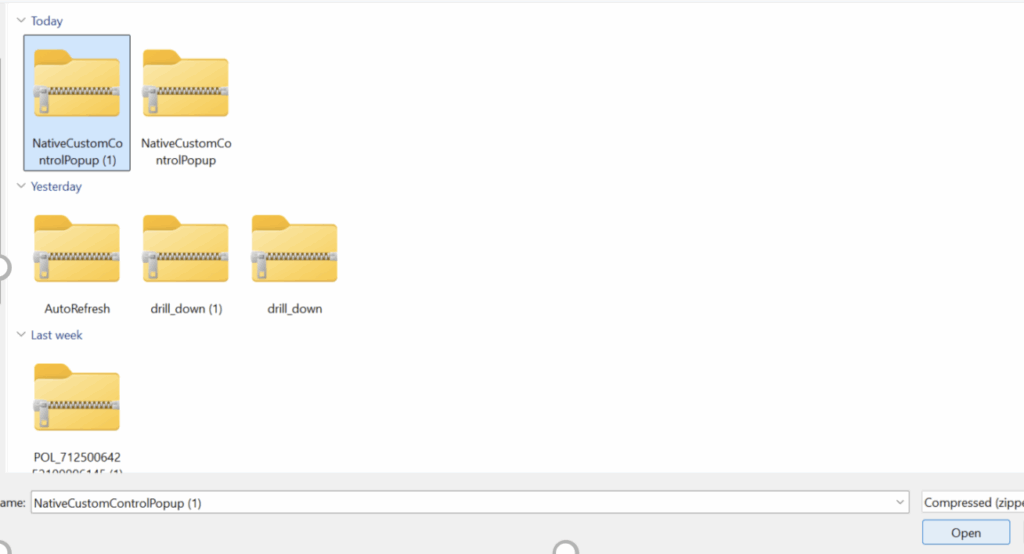
- Select the downloaded Zip file and click Open
- Once imported, the custom controls will be available in the Extensions section
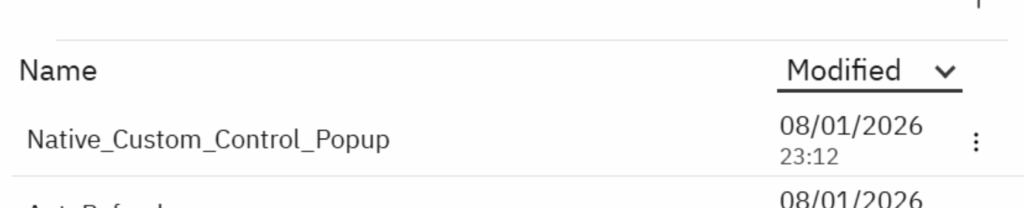
- Now create a new report in Cognos and go to Tool box
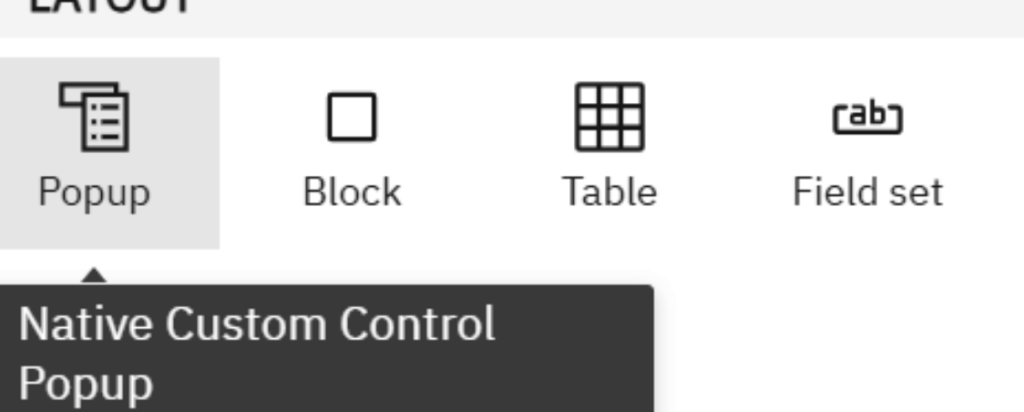
- We will see a custom control named Popup in the Layout section of the Toolbox.
- Now select the Popup custom control and modify its Options property as required.
- We will create multiple popups like Year, Product Line, Company, Information etc.using the native Custom Control which will show or hide specific content at run time.
- Product Line Popup
- Year Popup
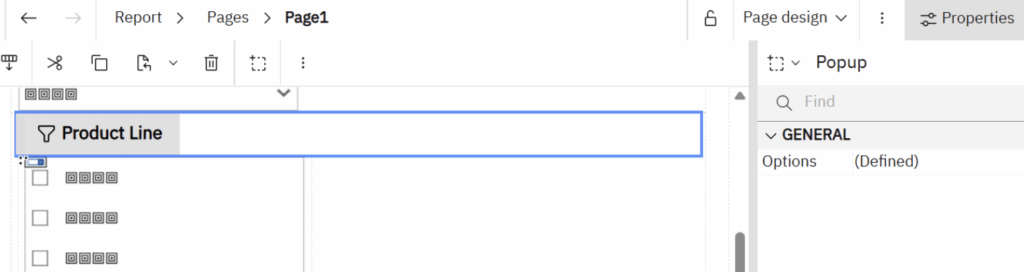

- Note: Each of these popup custom control is placed within a hidden Block (Box Type=None-Block) and is used to show the children of that block.
- The Block contains the content (e.g. the label and prompt control).
- Once report is ready and we can apply the filter at run time. (as shown in below snapshtos)