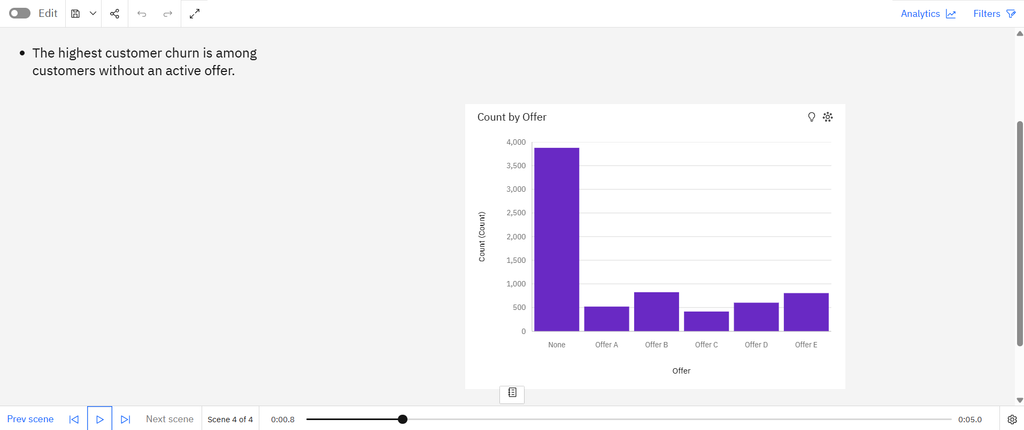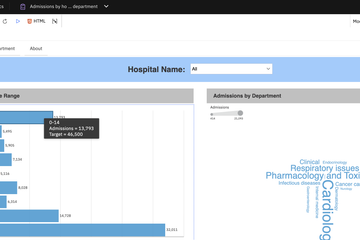
Static presentation slides and screenshot-heavy decks are quickly becoming a thing of the past. When presenting to boardrooms, modern business leaders face a common challenge: standard reports are excellent for deep compliance data, and dashboards are ideal for real-time monitoring, but neither effectively explains the context or narrative behind the numbers.
To bridge this gap, IBM Cognos Analytics features a native Storytelling workspace. A Cognos Story combines the visual depth of an interactive dashboard with the structured, step-by-step narrative flow of a live presentation deck. Best of all, every chart and KPI block remains connected to your live enterprise database, allowing you to filter data mid-presentation to answer unexpected questions instantly.
If you are ready to move beyond static snapshots, here is the official steps workflow to assemble, animate, and deploy your very first Cognos Story.
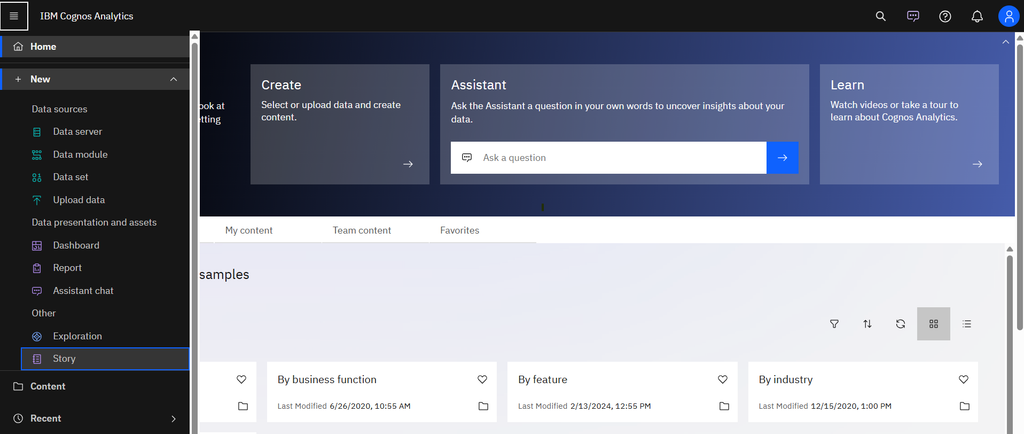
To begin, click the New icon (+) in the Cognos Analytics sidebar and select Story.
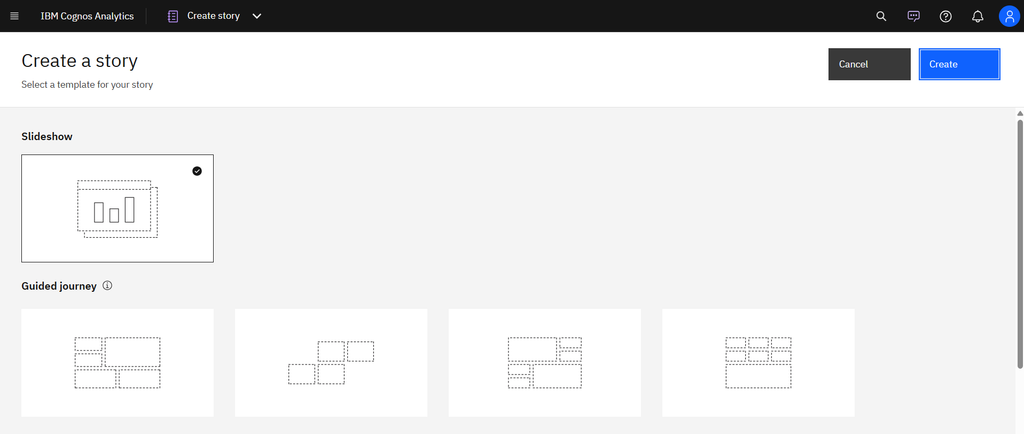
Select a template. Cognos Analytics provides templates that contain predefined layouts and grid lines to help with arrangement and alignment of the visualizations in a view.
Add visualizations to your view in the following ways:
If you know the data that you want to see, but are not sure about how to present it, click Select a source to add data to the Selected sources pane. Then, drag columns onto the canvas. Cognos Analytics displays them in the appropriate visualization.
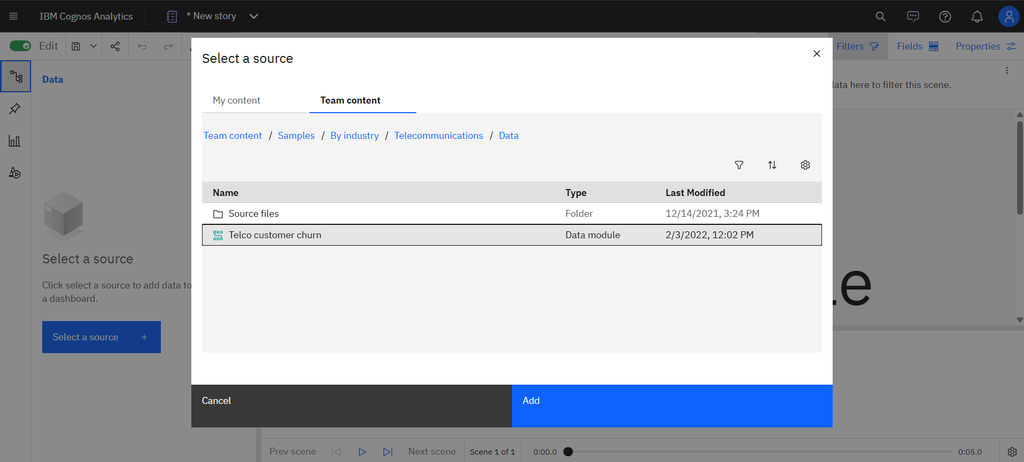
If you know the type of visualization you want to use, select the visualization type and then add columns to it.Drag your collected visualizations from the My pins pane to quickly build a dashboard or story.
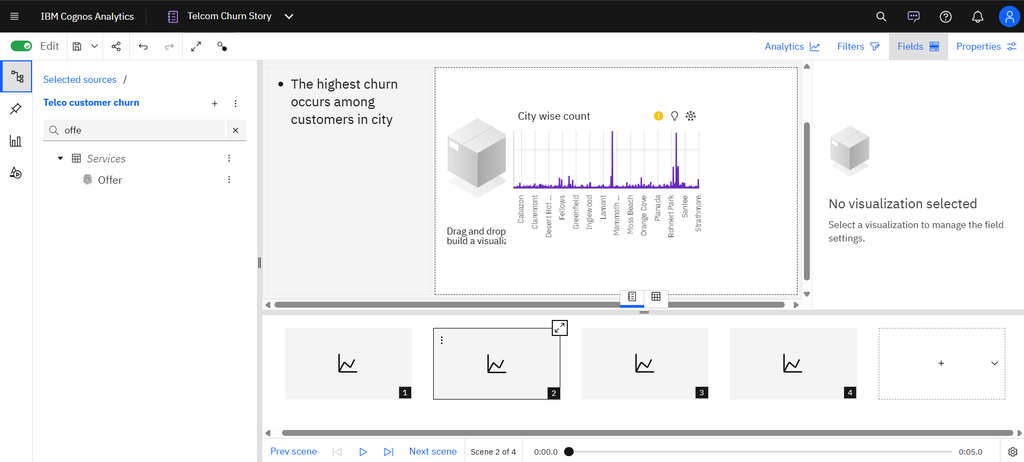
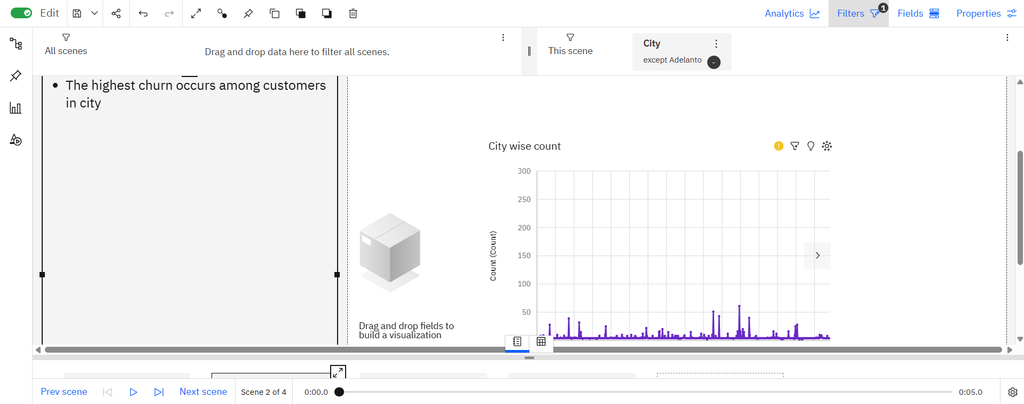
Limit the data that is displayed by filtering in one or more of the following ways:
- You can filter individual visualizations or on all visualizations in the view.
- You can even filter on a column that is not displayed in the visualization by using a context filter.
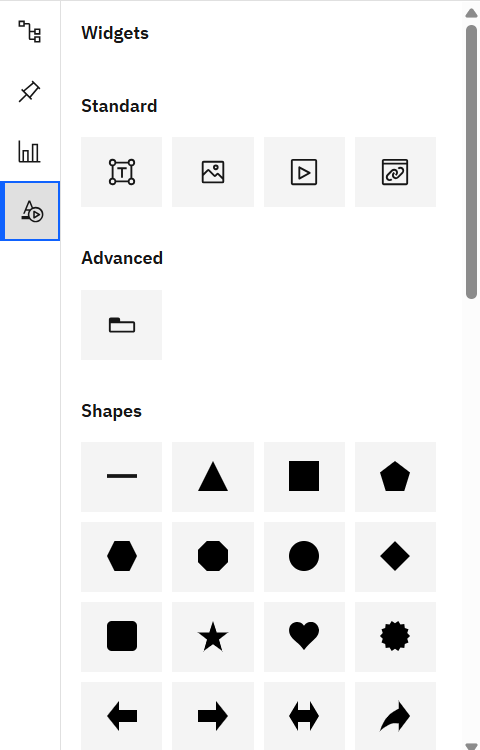
Enhance your view and draw attention to visualizations by adding text, images, media, and web pages.
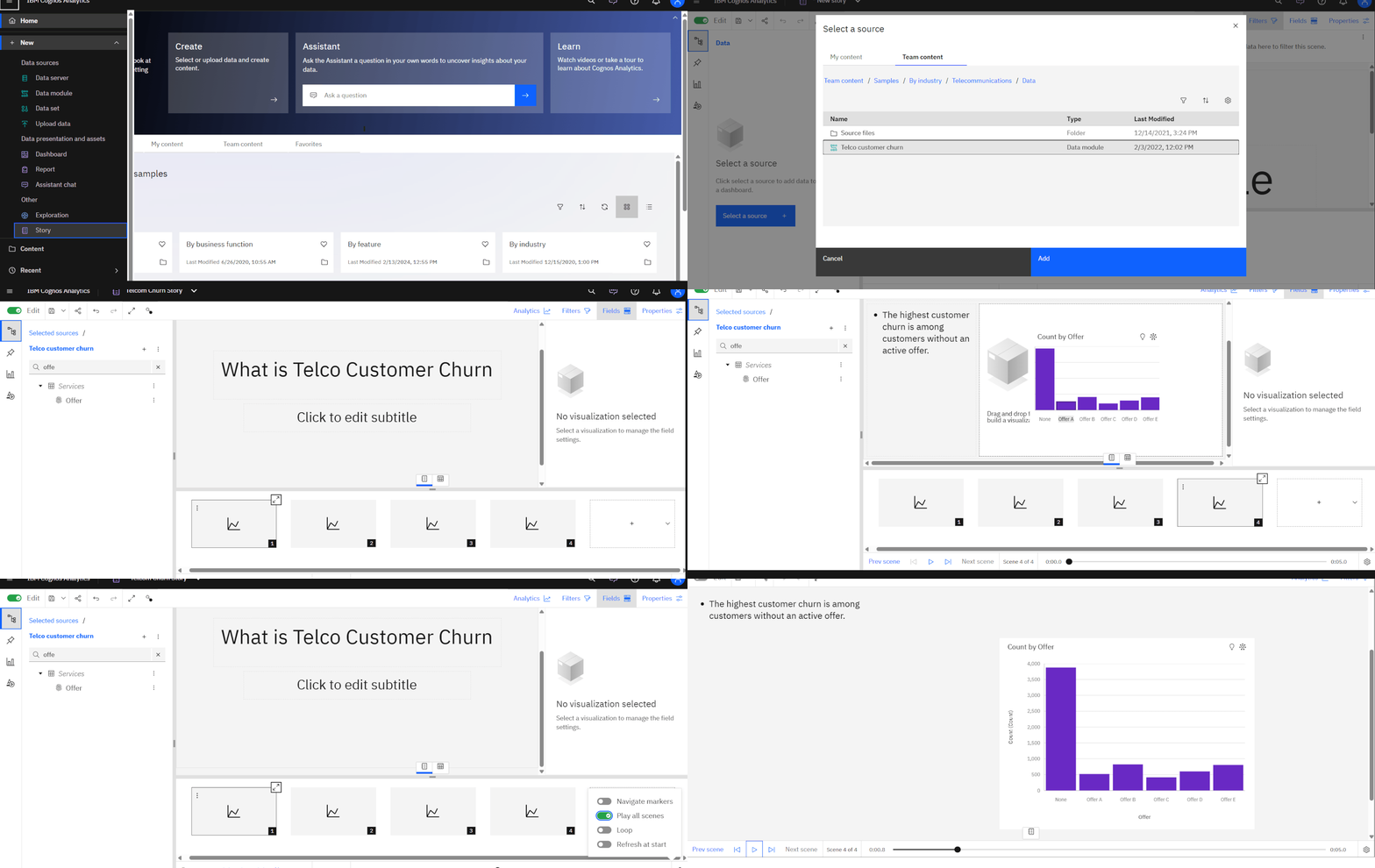
Once Story is ready you can run story by loop, Refresh at start, Play all scenes and Navigation makers.
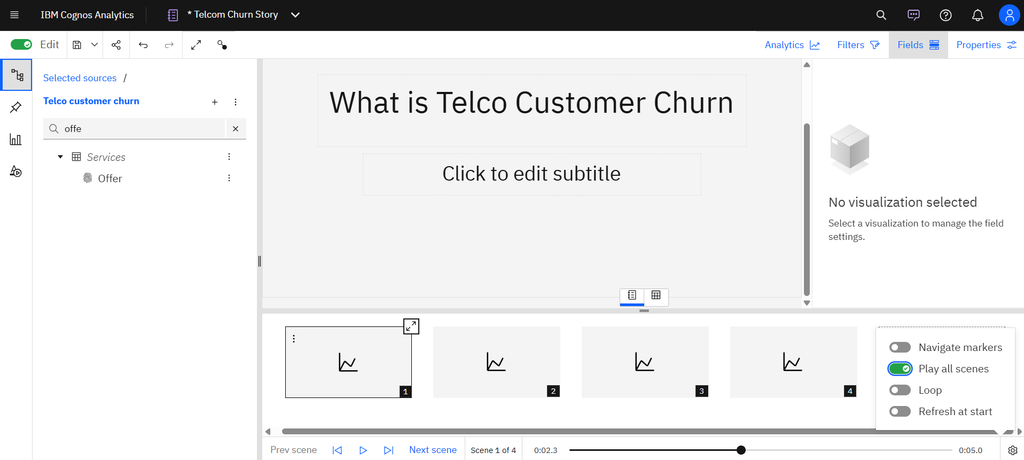
Using Play button you can run story from start to end.