By connecting IBM Cognos Analytics with watsonx Orchestrate, an intelligent agent can fetch key analytics details on demand. This blog focuses on how outputs are generated from Cognos Analytics through watsonx Orchestrate, enabling conversational access to reports and insights that help teams make faster, smarter decisions.
Connect Cognos Analytics with WatsonX Orchestrate (Quick Overview)
- Go to Manage > Connections in Watsonx Orchestrate
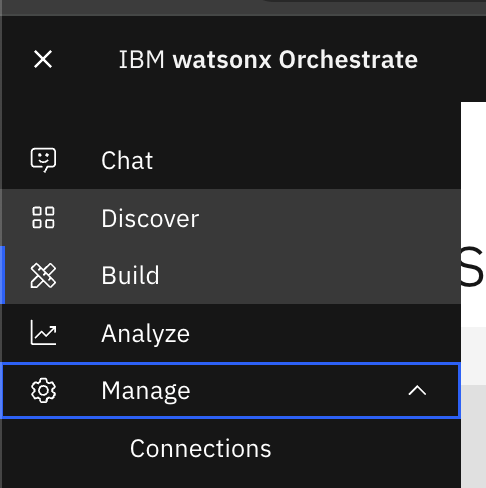
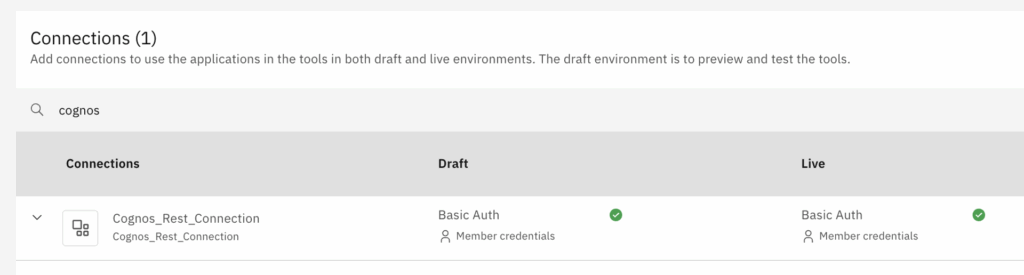
- We may require to connect with our Cognos Admin for pre-requisites and then we can create connection using the Cognos Analytics URL with port number
Use agents to communicate with Cognos and fetch requested details
- Open ‘Cognos Assistant’ chat window.
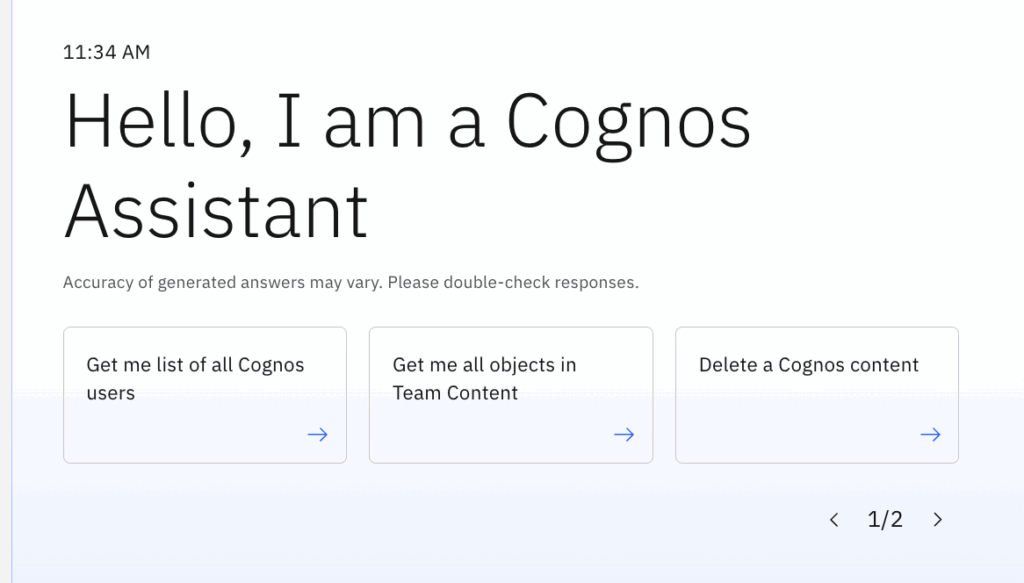
- It will establish secure connection with Cognos Analytics at backend
- Agent is now ready to communicate with Cognos and answer the user query
- Hence, lets take our first use case.
Cognos Assistant: Use Case 1
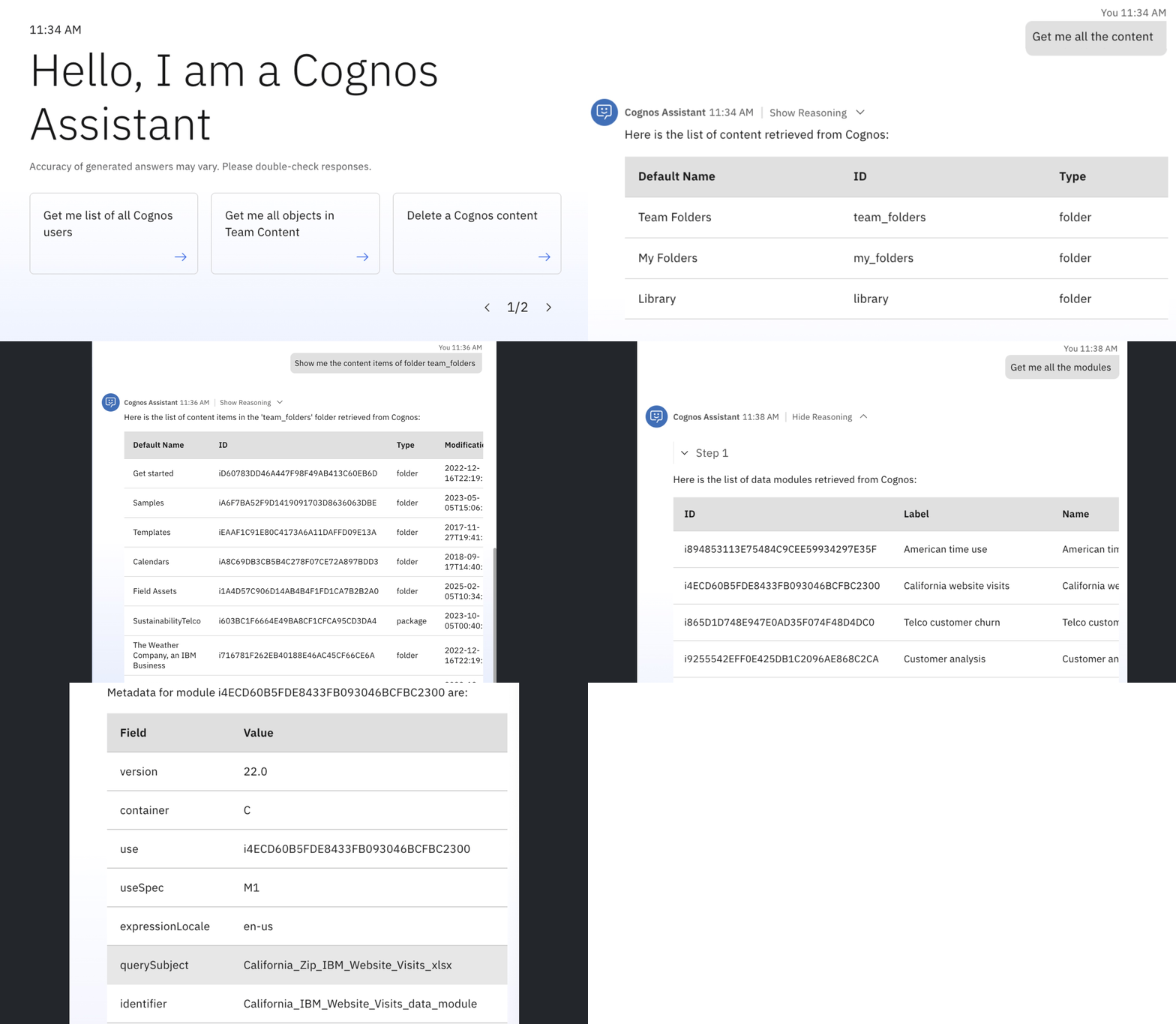
- Enter ‘Get me all the content’ in agent chat window
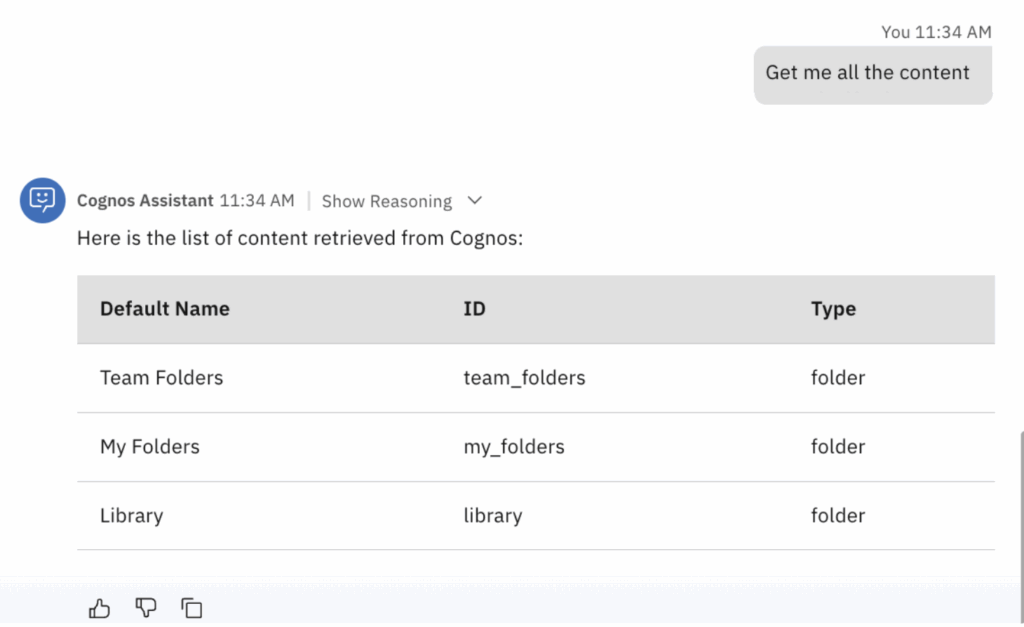
- It results all the content in Cognos
- We have multiple folders/items in Cognos Analytics > Team Content
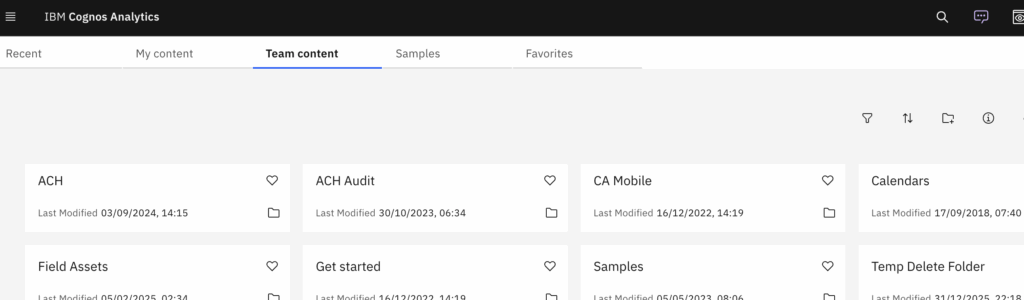
- Lets see these items under Team Folders using our agent
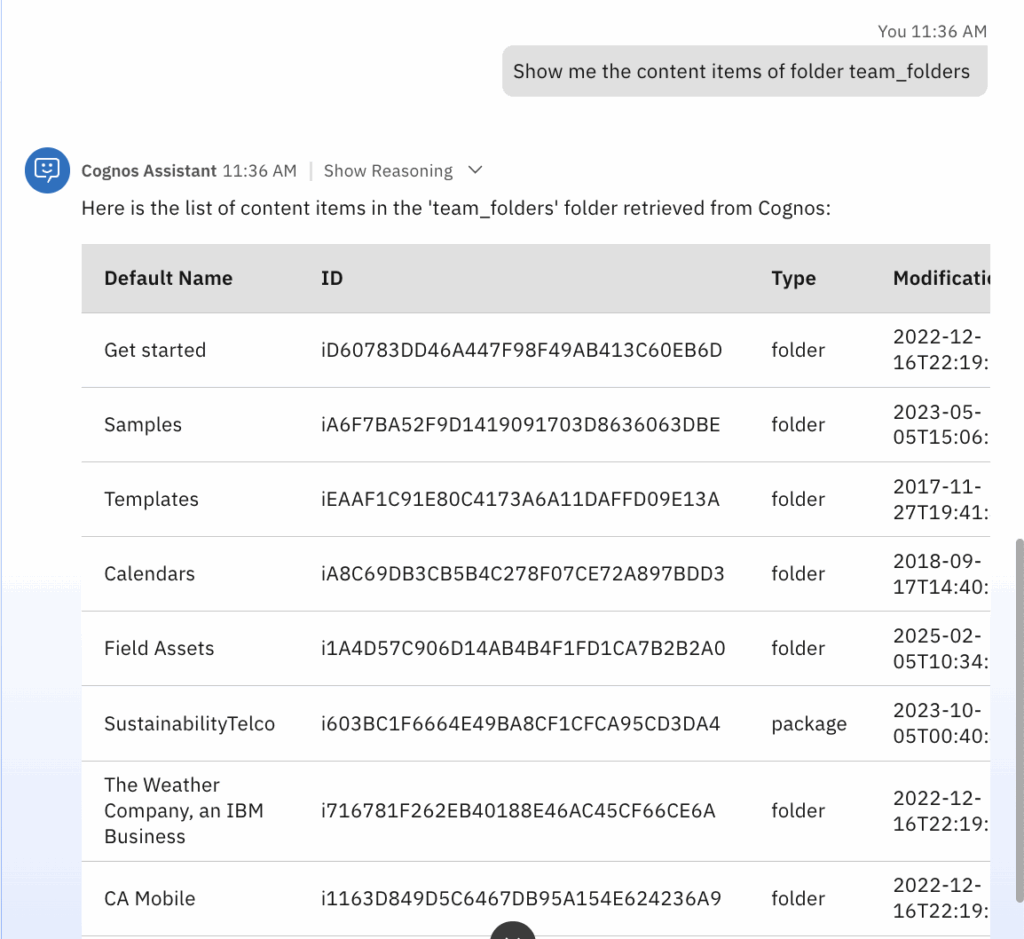
Cognos Assistant: Use Case 2
- Now we take another example to see all the data modules available in Cognos
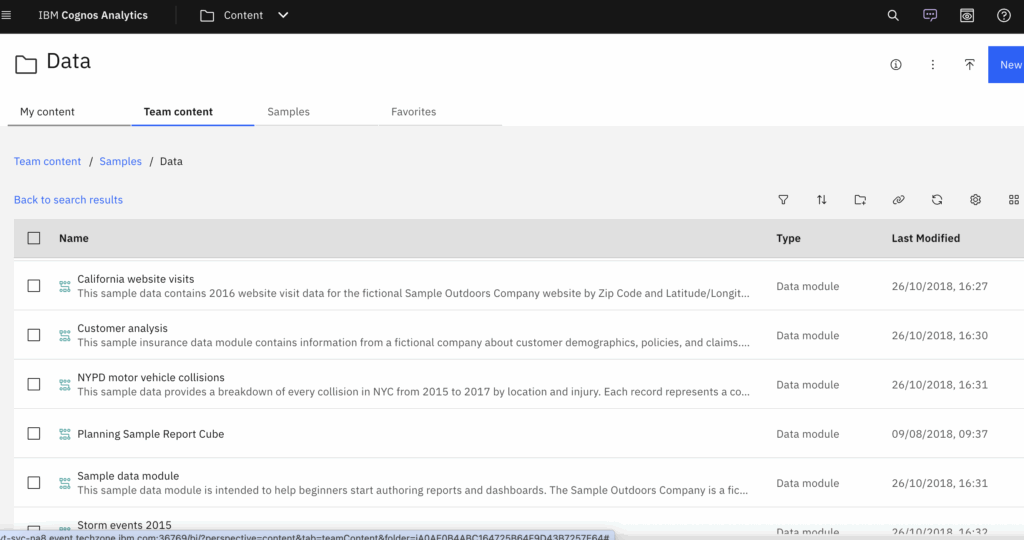
- To retrieve the same details from Cognos Assistant agent, enter ‘Get me all the modules’ and it will fetch all the data module details
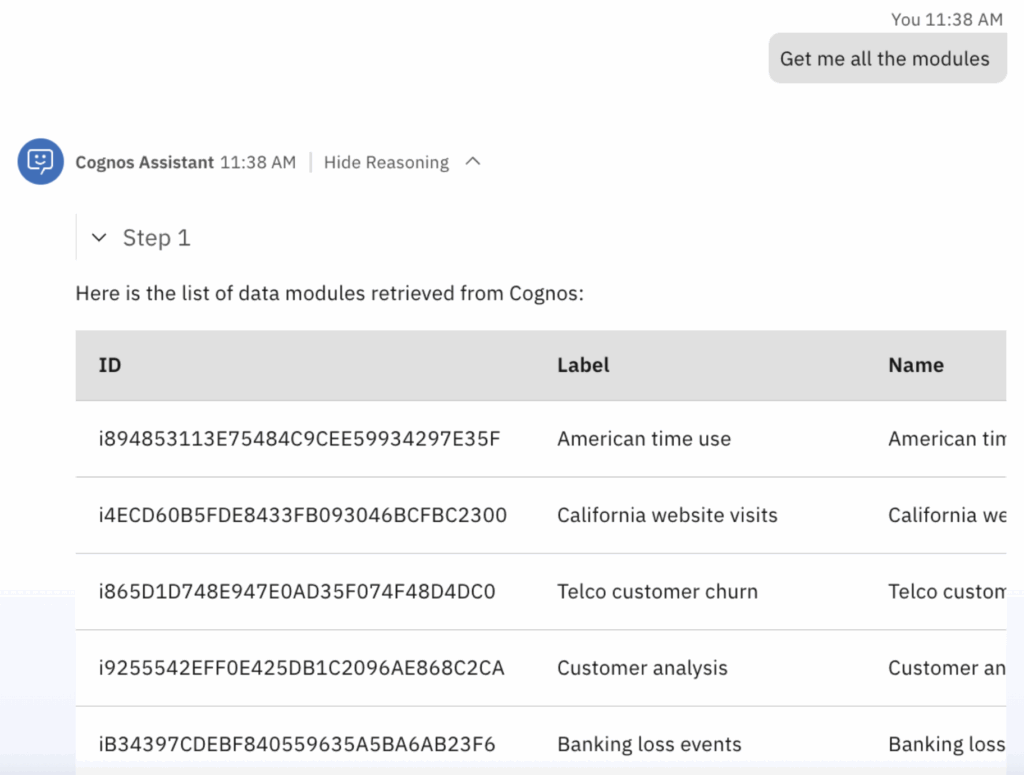
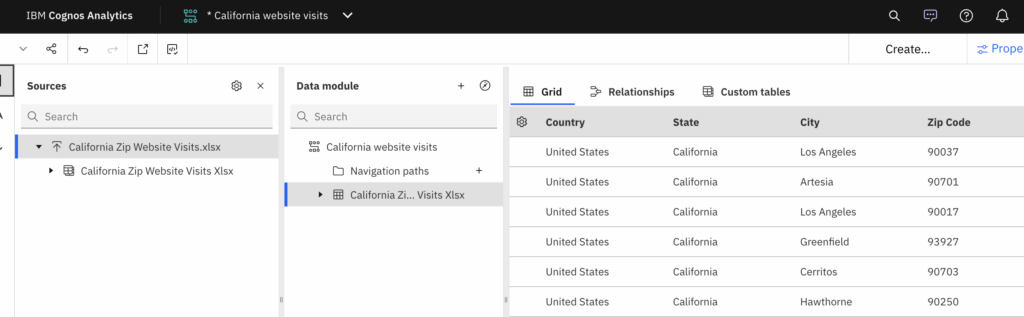
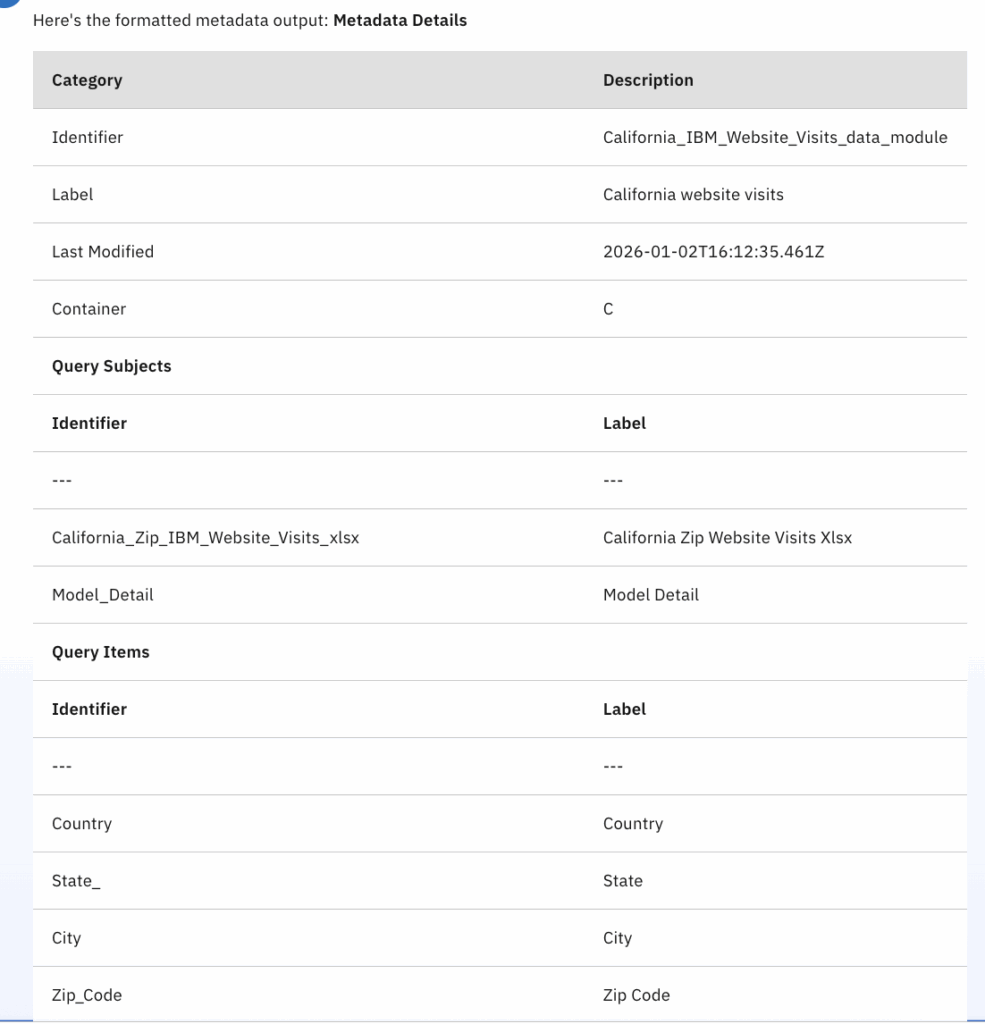
- Now to analyze the ‘California website visits’ data module further, enter its id as input and the output will show all the data module specific details
- California website visits data module in Cognos environment
- And its agent output:
Cognos Assistant: Use Case 3
- This agent is also capable of deleting or even fetching admin level details from Cognos
- For instance if we need to delete some content in Cognos, just pass that content ID
- We created ‘Temp Delete Folder’ in Cognos for same
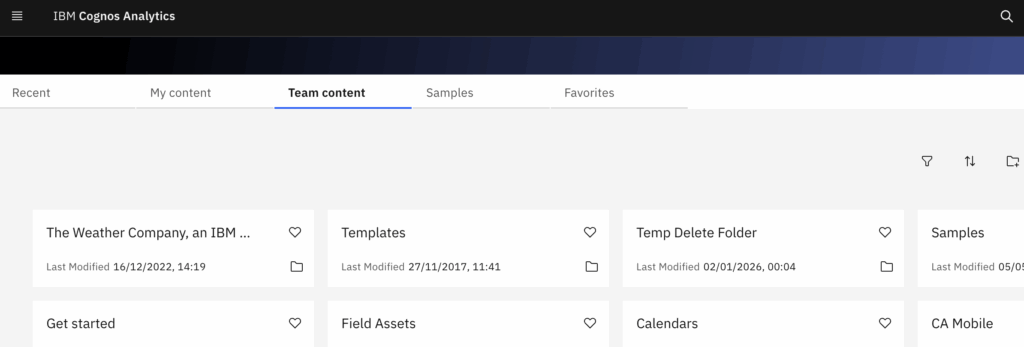
- To perform the delete operation, we will use ‘Temp Delete Folder‘ folder id
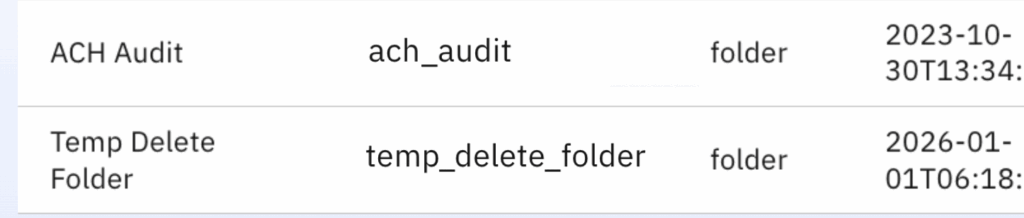
- Enter ‘Delete the Cognos object with ID iB331BD0005D641C69E299A073BF2AFA6’ as shown below
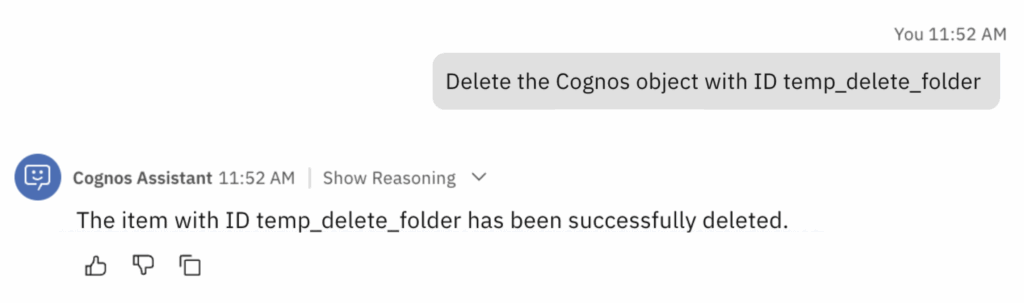
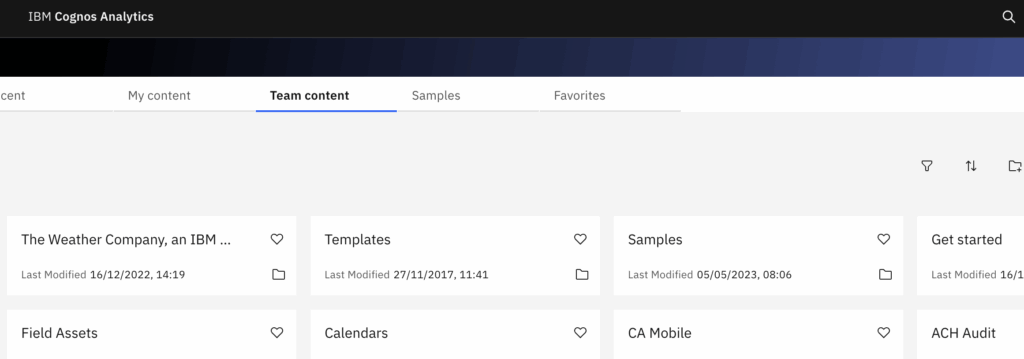
- Agent successfully deleted the folder from Cognos Analytics
Cognos Assistant: Use Case 4
- Similarly, we can use this agent to check the admin level details as well
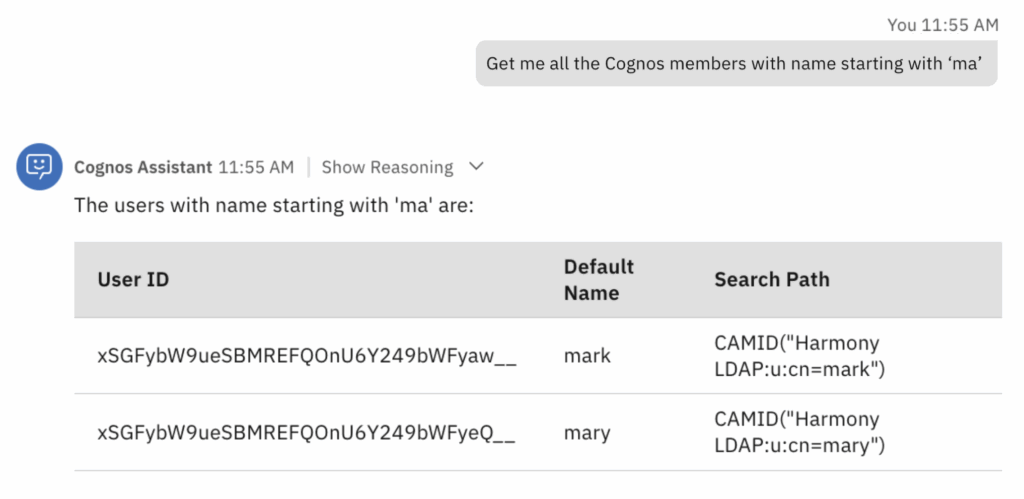
- For example, Our cognos environment has 2 user names starting with ‘ma’
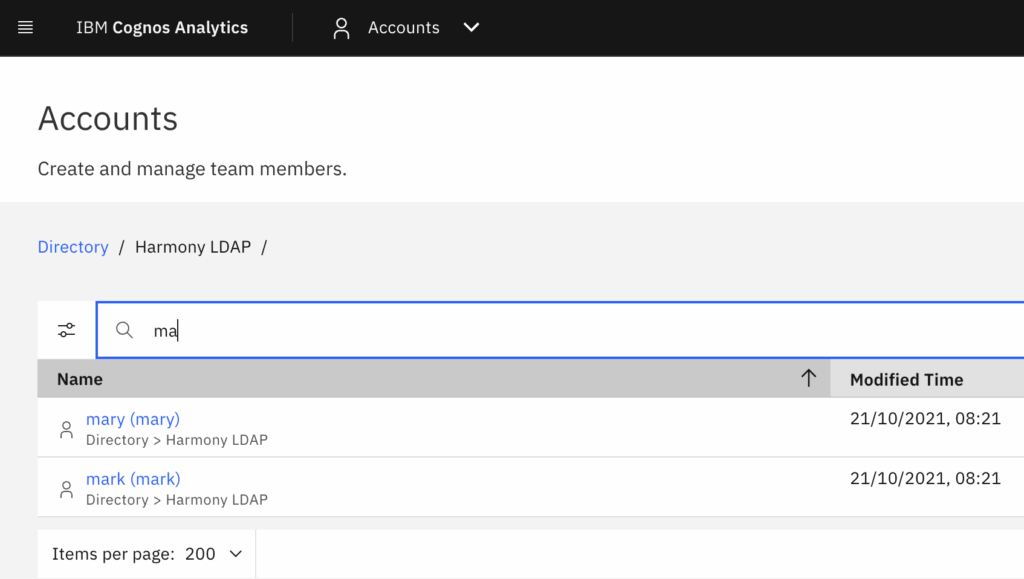
- Hence enter ‘Get me all the Cognos members with name starting with ‘ma’ and click Send/Enter in Agent chat.
- It generates the list of all the user names starting with ‘ma’
Thus, this agent enables users to access and use IBM Cognos Analytics anytime, anywhere, turning conversational interactions into actionable insights and empowering faster, smarter decisions on the go.


