With the release of Cognos Analytics 12.1.1, IBM continues to enhance the reporting experience by delivering features that improve usability, navigation, and end-user efficiency. One of the standout additions in this version is the automatic generation of PDF bookmarks, also referred to as the Table of Contents for PDF outputs.
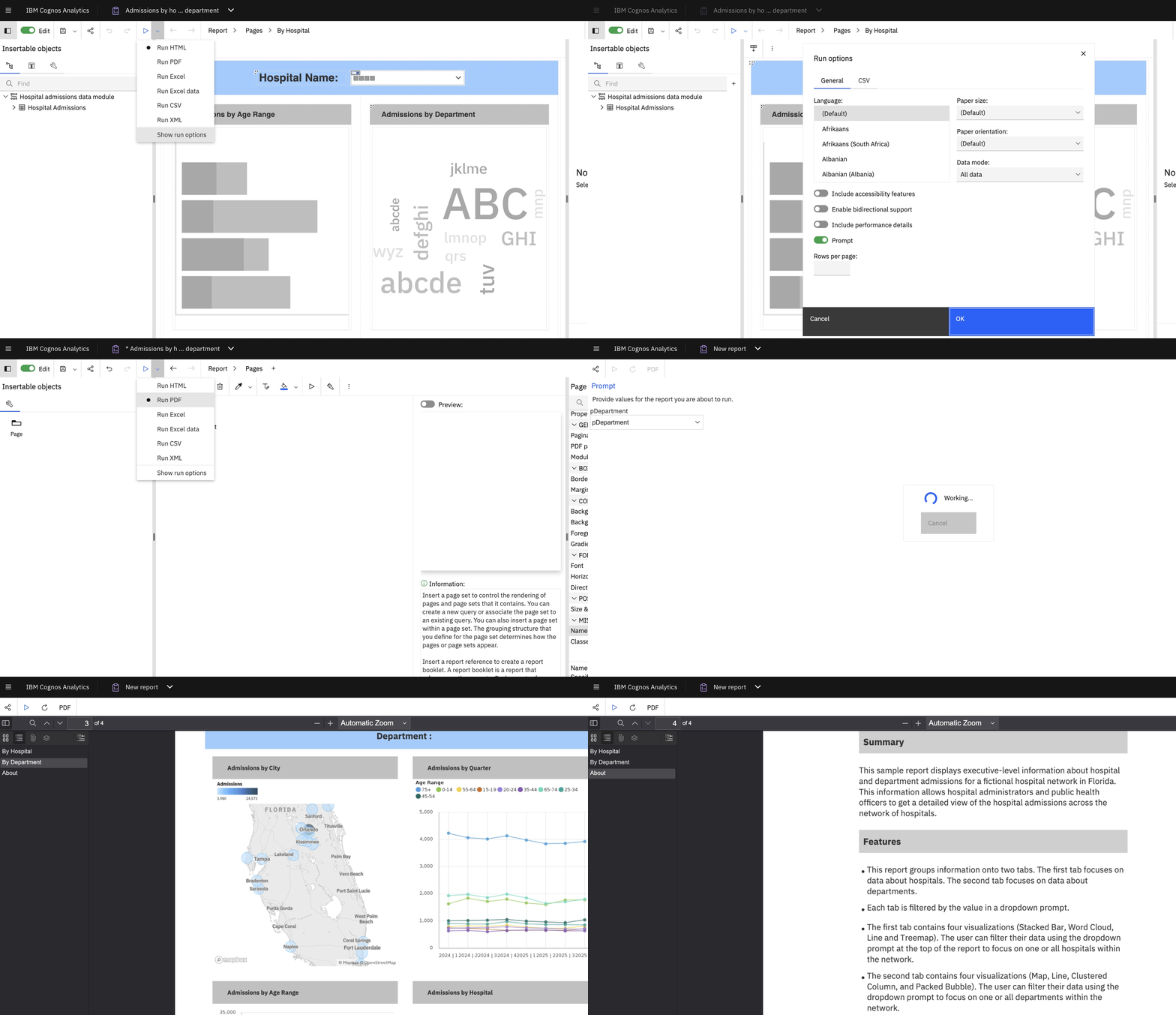
This new capability allows Cognos to automatically create structured, clickable bookmarks based on the report’s layout and object hierarchy.
Lets see it in working mode:
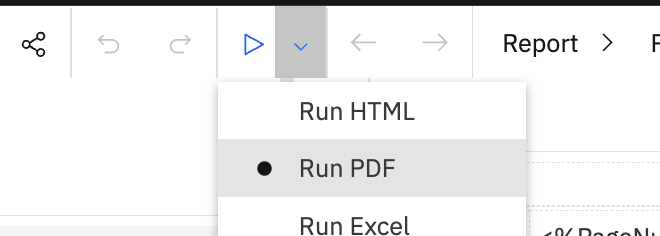
- First we would run report direct with ‘Run PDF’ option:
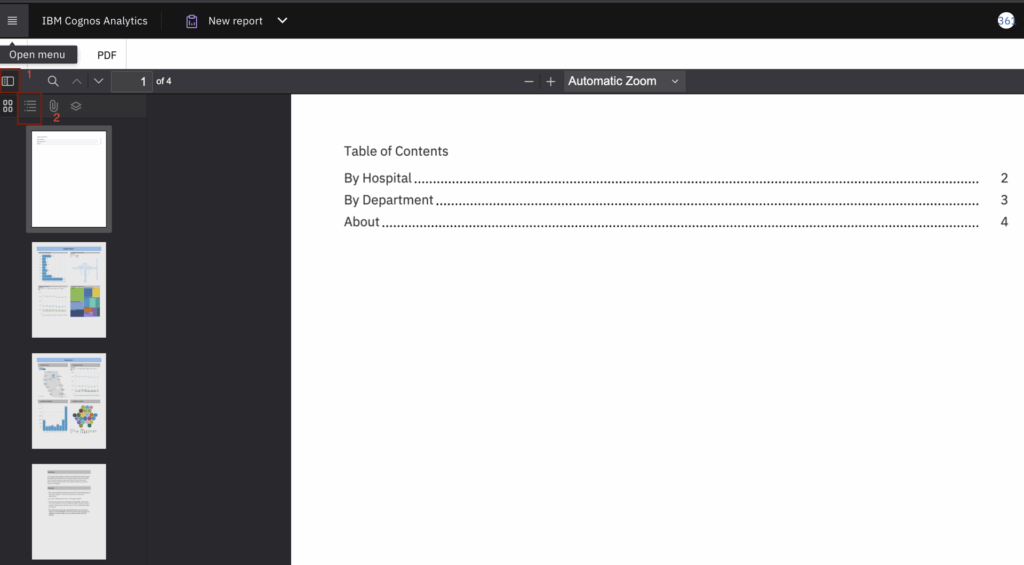
- In PDF output, expand the menu and select ‘Show Document Outline’ option
- This option is disabled, therefore we can not use bookmarking feature while seeing the PDF multi-page output.
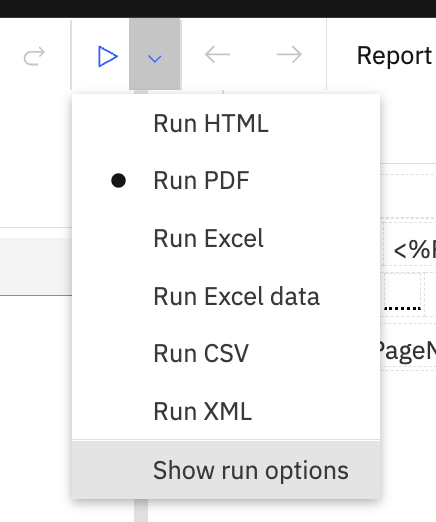
- To enable this option, Instead of using ‘Run PDF’ option directly, go to ‘Show Run Options’
- Select ‘Include accessibility features’ and then Run PDF.
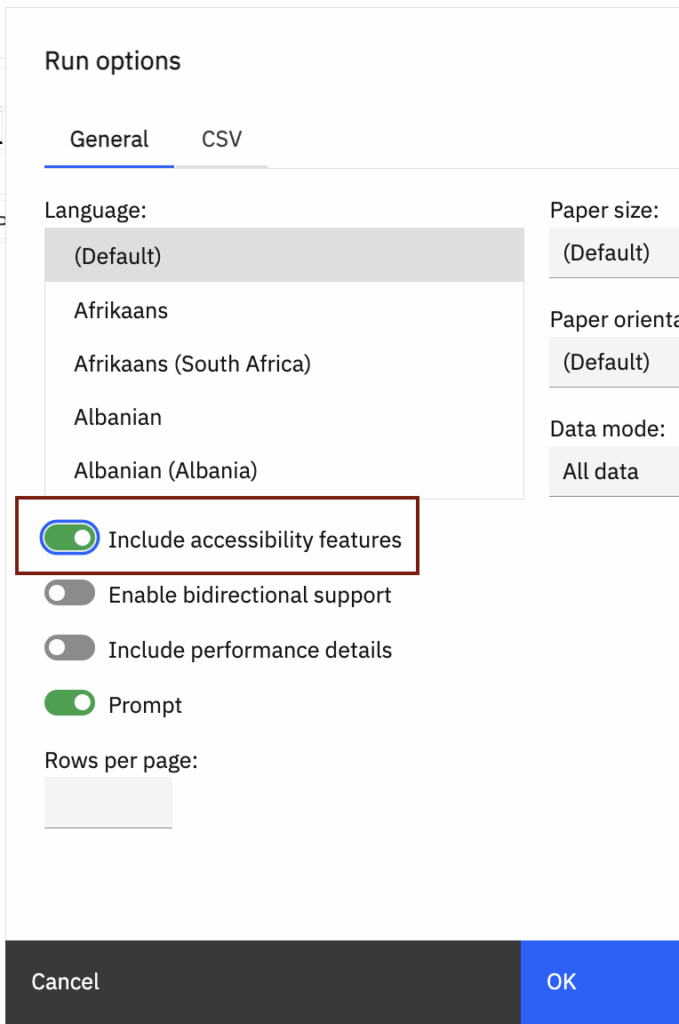
- It enables the Bookmarking feature in the PDF output.
- Expand the Menu and select ‘Show Document Outline’.
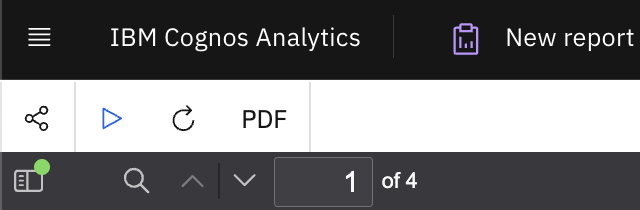
- It shows all the bookmarking in the report and make it easy to access the pages.
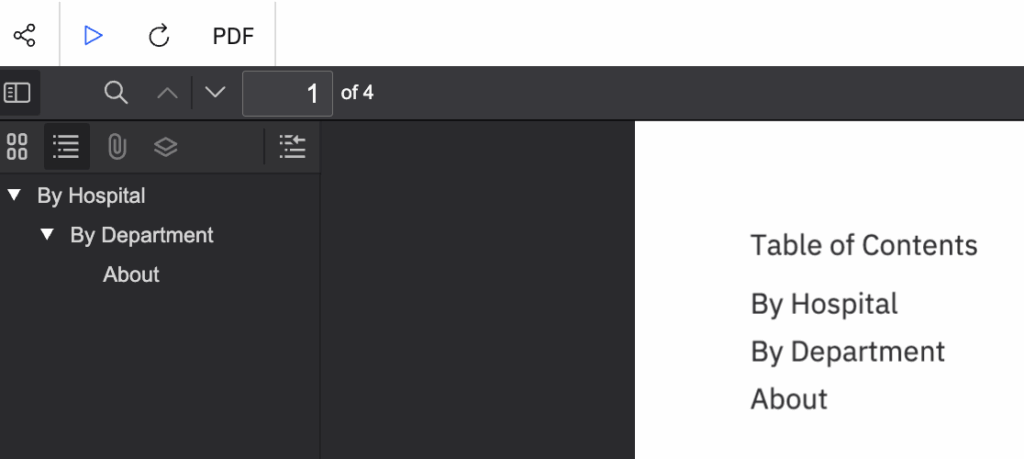
Now, to make this feature default & available for everyone, we would go to admin portal and setup a new advanced parameter RSVP.GENERATETAGGEDPDF for both ReportService and BatchReportService.
- Go to Manage > IBM Cognos Administration > Configuration tab
- Select Dispatchers and Services > ReportService
- Click on Set Properties > Settings tab, then click on Edit… to add advanced parameter.
- Add RSVP.GENERATETAGGEDPDF in parameter and set the value to true.

- Click OK and repeat the same process for BatchReportService.
- No need to restart Cognos, go to report and disable the ‘Include accessibility features’ and then Run PDF.
- PDF output will have ‘Show Document Outline’ enabled and we can use the bookmark feature without any issue.


