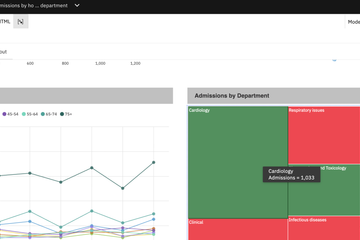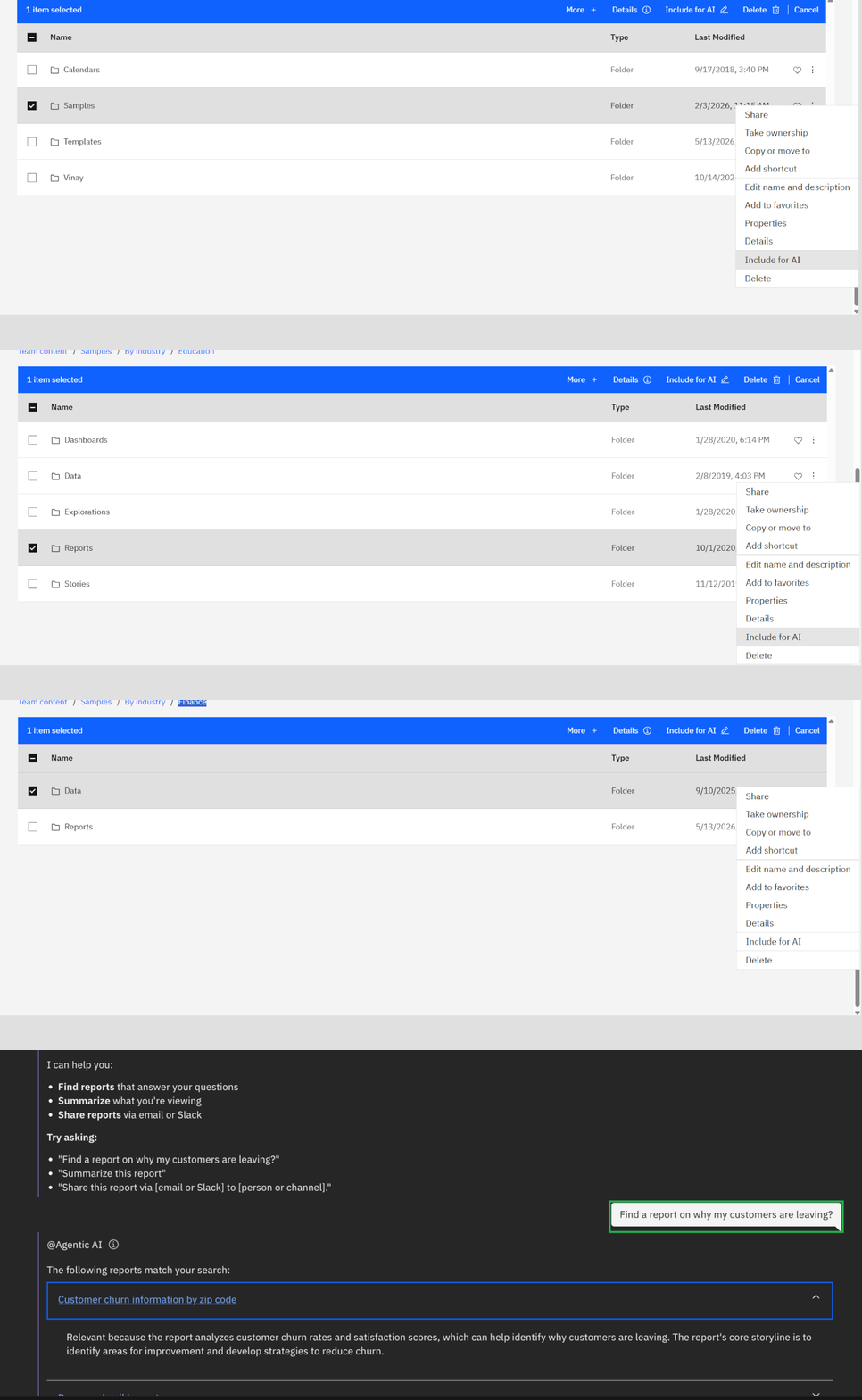
AI indexing in IBM Cognos Analytics helps users discover existing reports and make supported data sources available to AI-powered features. It reduces manual searching and makes report creation easier.
This guide explains how to include reports and data sources in the AI index.
Step 1: Open the Content Section
- Log in to IBM Cognos Analytics.
- Open the Content section.
- Navigate to the folder containing the reports or data sources you want to include.
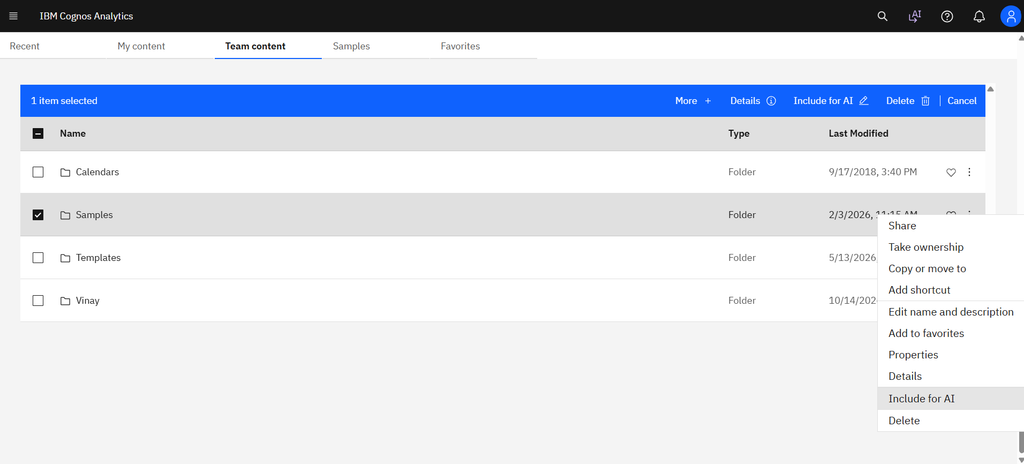
Step 2: Include Reports for AI
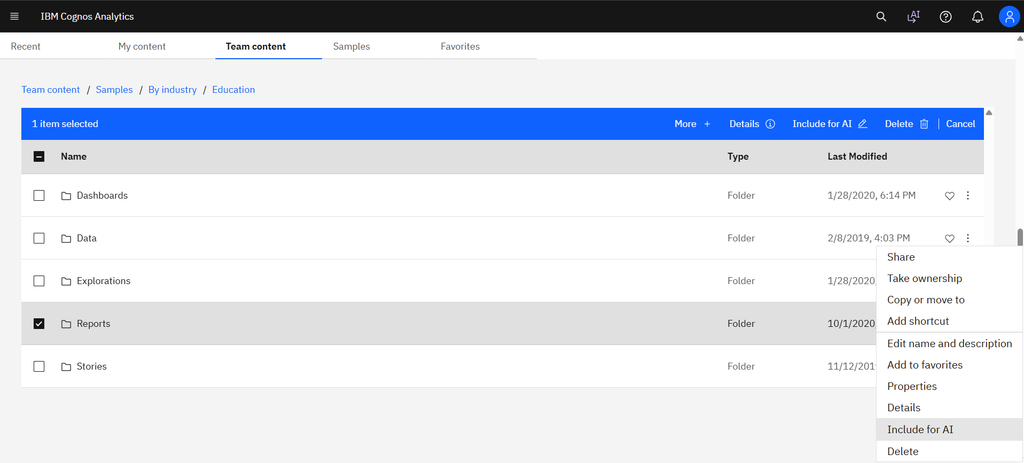
- Open the folder’s Action menu.
- Select Include for AI.
- Wait for the indexing process to complete.
This action makes eligible existing reports available to supported AI features. Reports in subfolders are also included when you apply the action to their parent folder.
Step 3: Include Data Sources for AI
- Navigate to the folder containing your data module or supported data source.
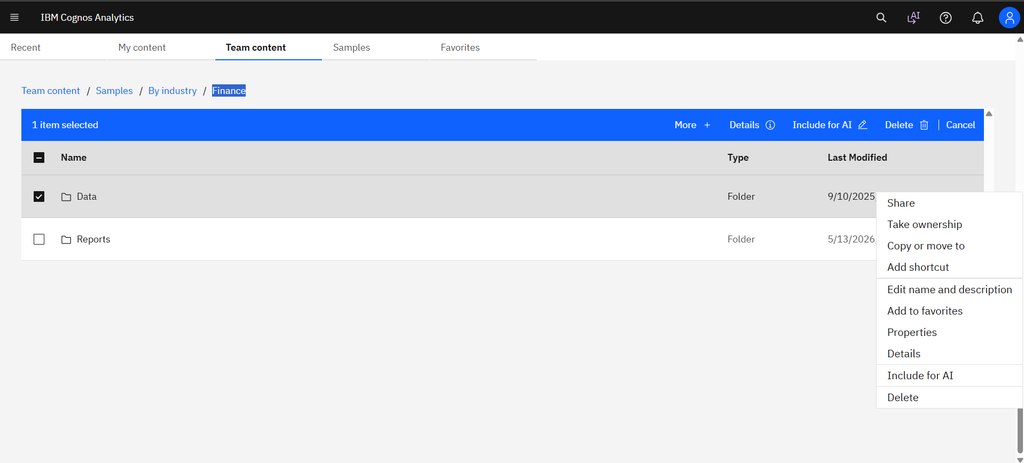
- Open the folder’s Action menu.
- Select Include for AI, if available.
- Ensure the data source is accessible to the intended users.
Indexed data sources can be used by supported AI features to help generate reports from natural-language requests.
Step 4: Test AI Indexing
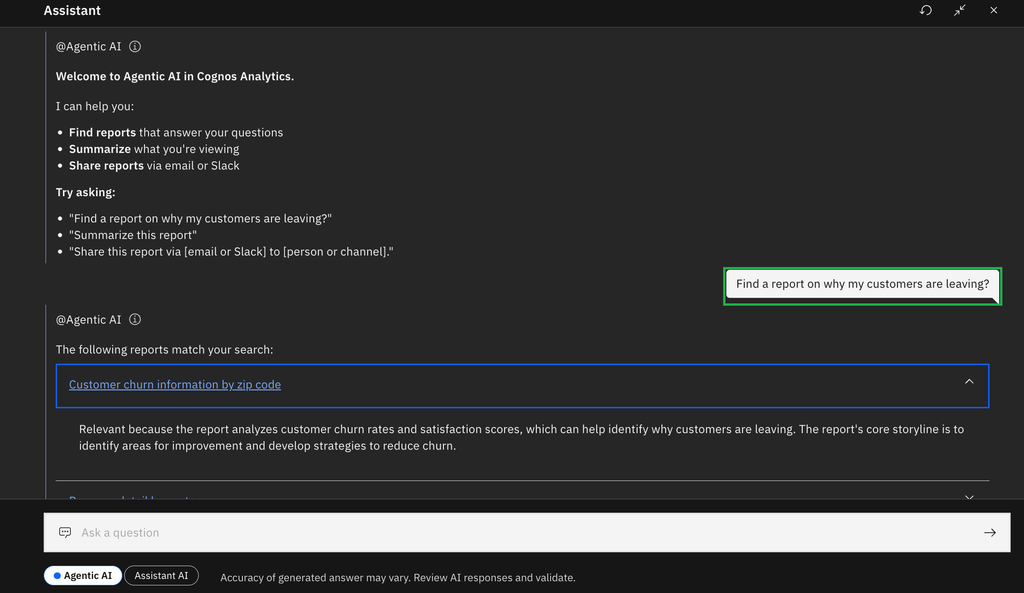
After indexing, test the feature using a simple request, such as:
“Find a report on why my customers are leaving?”
Check whether the AI feature can access the relevant data and generate the expected results.
Best Practices
- Use clear and meaningful report names.
- Keep reports organized in folders.
- Ensure data sources are accurate and accessible.
- Verify user permissions.
- Review AI-generated reports before using them.
Conclusion
AI indexing helps make IBM Cognos Analytics reports and supported data sources easier to discover and use with AI. By including relevant content in the AI index, organizations can simplify report discovery, reduce manual effort, and improve productivity.