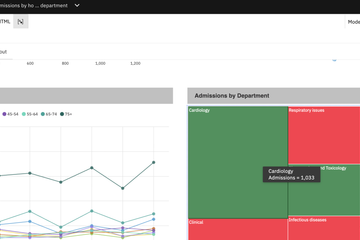
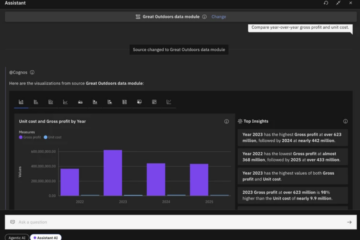
Managing Cognos Analytics operations across enterprise environments can be time-consuming and technically challenging. Cognos Assistant, available as a native agent template in IBM watsonx Orchestrate, simplifies these tasks by enabling users to interact with Cognos Analytics through natural language conversations.
Users can request supported operations, retrieve information, and execute tasks directly through chat, reducing the need to navigate multiple interfaces or perform operations manually. The agent leverages Cognos Analytics REST APIs and Mashup capabilities to facilitate these interactions.
Step 1: Locate the Agent in the Catalog
- Open your watsonx Orchestrate dashboard and navigate to the Catalog tab.
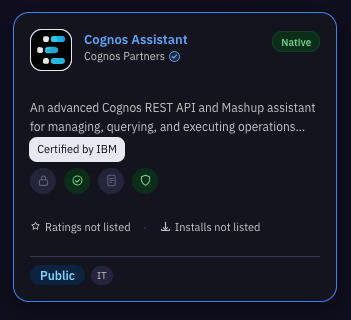
- Locate the Cognos Assistant tile. You can verify it is the correct, official tool by checking for the Native tag in the top right and the Certified by IBM badge right below the description.
Step 2: Choose Your Deployment Method
Look at the top-right corner of the agent’s overview page (shown in the fourth screenshot). You have two distinct options to get started:
- Option A: “Use as template” – Click this blue button to spin up a standalone, pre-configured version of the Cognos Assistant that you can customize or run independently.
- Option B: “+ Add to Agent” – Click this button if you already have an existing, larger custom enterprise AI agent running and you want to inject these specific Cognos REST API skills straight into its existing workflow.

Step 3: Review Performance and Latency Metrics
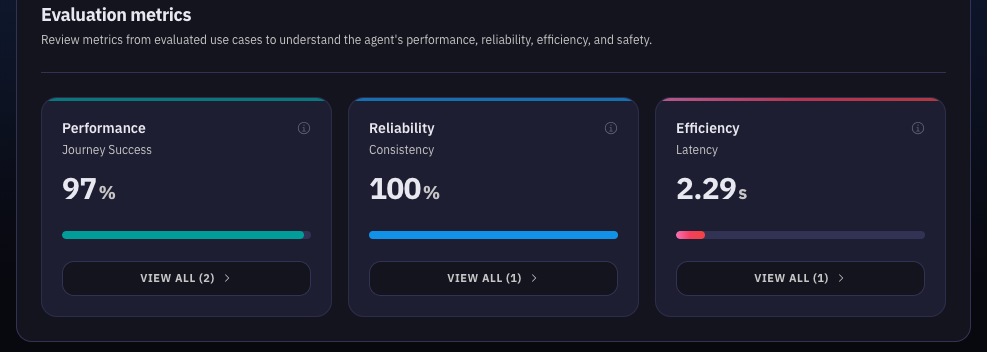
Before putting the agent into production, click on the Evaluation details tab (visible in the lower menu bar of the fourth screenshot) to audit its benchmarks:
- Performance: Ensure the 97% Journey Success rate meets your team’s key performance indicators.
- Reliability: Note the 100% Consistency rate, meaning the agent handles repeating tasks without unexpected failures.
- Efficiency: Note the average latency of 2.29 seconds so you can set correct user expectations for response times.
Step 4: Verify Compliance & Governance Risks
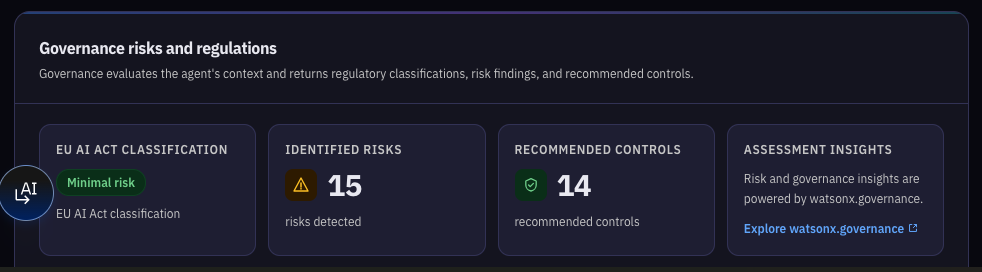
Scroll down to the Governance risks and regulations section powered by watsonx.governance.
- Review the EU AI Act Classification block to confirm it is marked as Minimal risk.
- Confirm that the 14 recommended controls are active to mitigate the 15 identified risks before giving the agent access to live data environment credentials.
Complete the required security, governance, and access-control reviews before connecting the agent to production Cognos environments or sensitive credentials.
Step 5: Test with Sample Use Cases
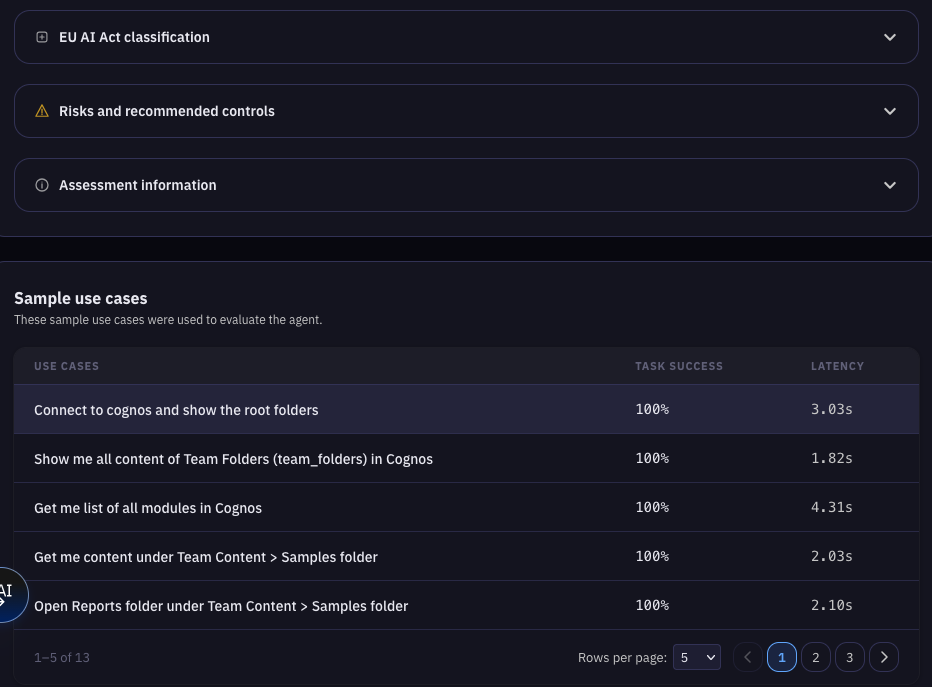
Scroll to the bottom table labeled Sample use cases (shown in the second screenshot) to see exactly how to phrase commands. You can begin testing the agent by asking it to execute these exact tasks:
- “Connect to cognos and show the root folders”
- “Get me list of all modules in Cognos”
- “Open Reports folder under Team Content > Samples folder”
Verify that your test runs return a 100% Task Success status and complete within the expected 1.8 to 4.3-second latency window shown in the log.
Conclusion
Cognos Assistant brings AI-powered automation to Cognos environments through IBM watsonx Orchestrate. By following these steps, teams can discover the agent, choose the right integration method, evaluate its performance, review governance requirements, and validate its capabilities using practical prompts.
The key benefit is simpler interaction with Cognos operations through natural-language requests, helping teams reduce repetitive manual work and improve workflow efficiency.