In IBM Cognos Analytics, scheduled reports help users receive important business information automatically. However, sometimes a report schedule fails repeatedly due to data source issues, configuration problems, or other errors.
To prevent repeated failures, IBM Cognos Analytics 12.1.3 introduces an automatic disable feature for failed report schedules. This feature automatically disables a schedule after a specified number of consecutive failures and sends an email notification to help you investigate the problem.
This steps explains how to configure the failure threshold, view disabled schedules, and enable them again.
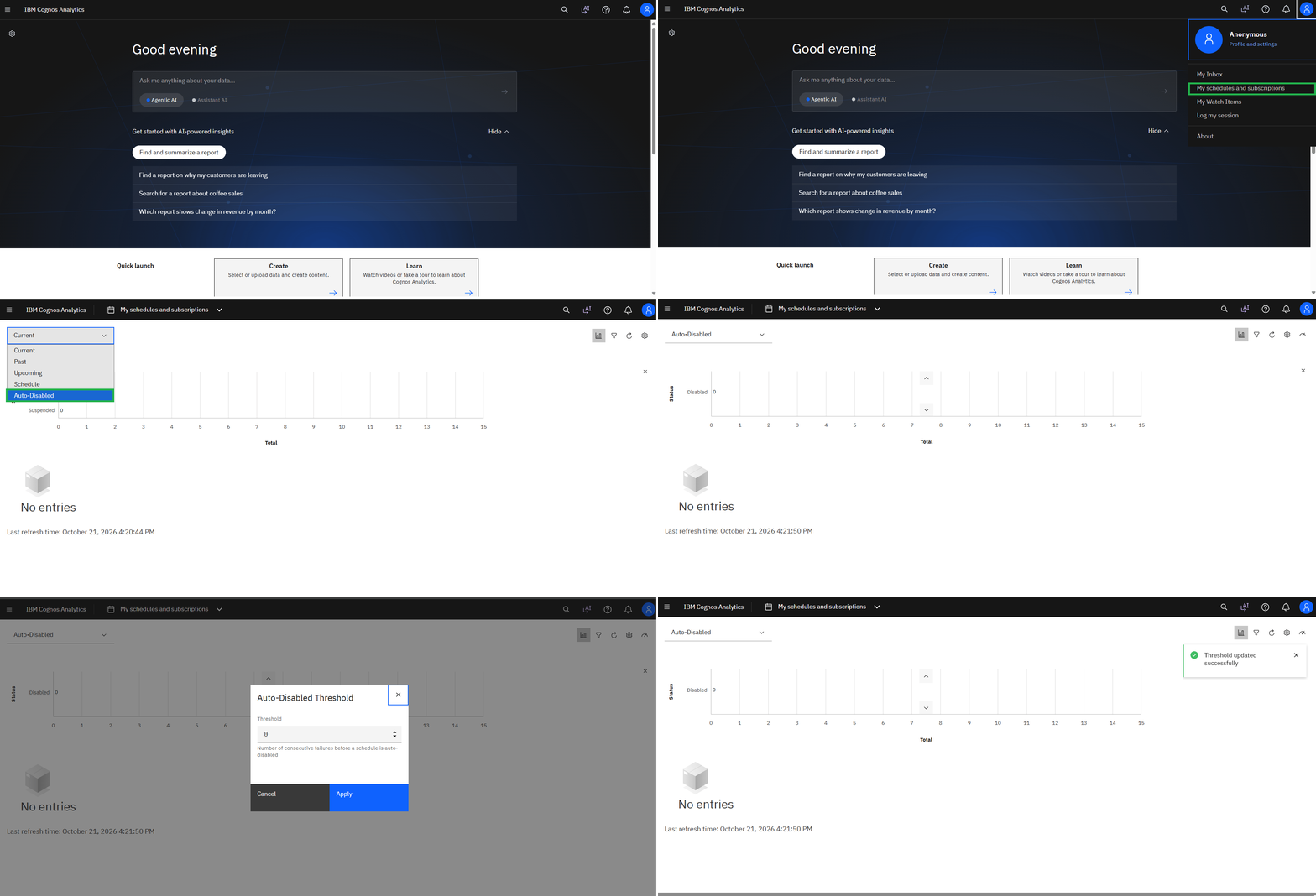
Step 1: Open the Auto-Disabled Section
- Log in to IBM Cognos Analytics.
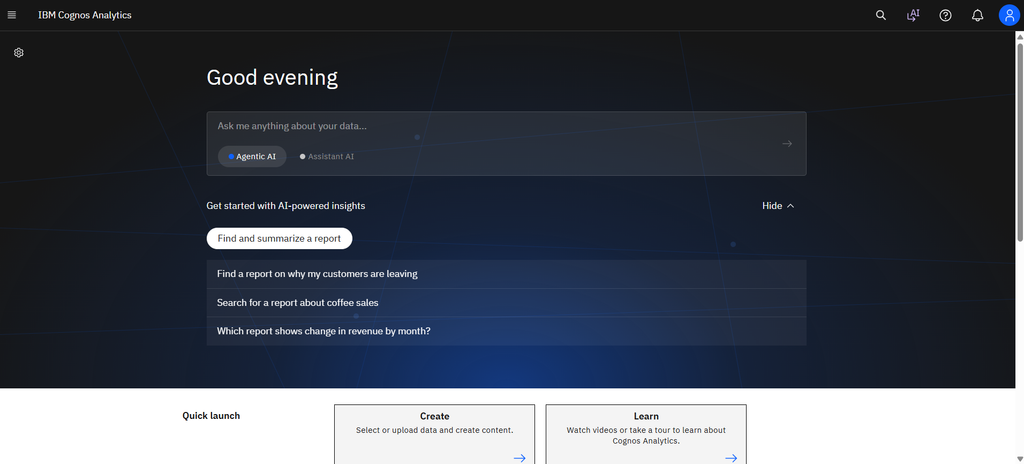
2. Open your Profile menu.
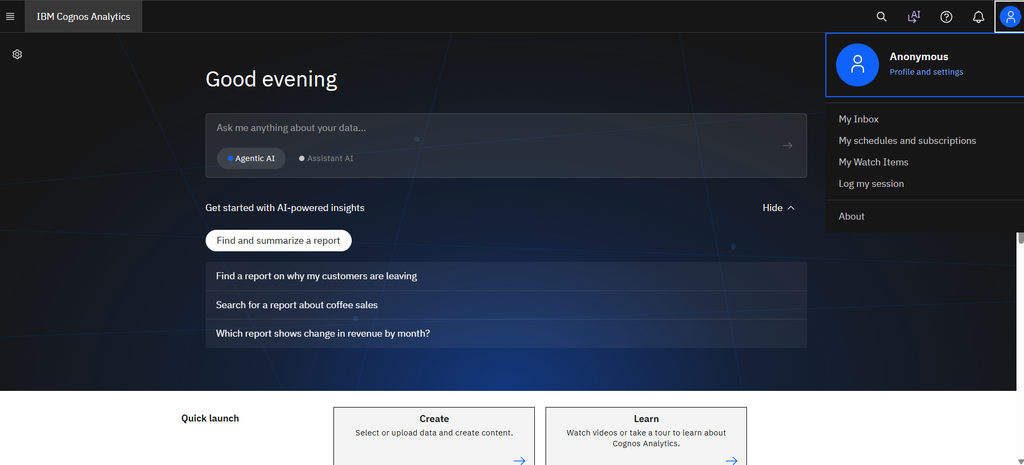
3. Navigate to My Activities and Schedules.
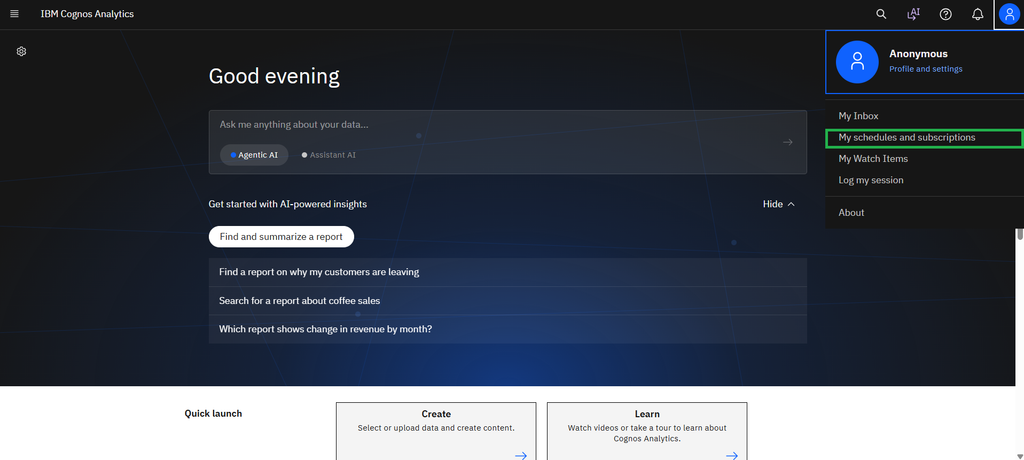
4. Select Auto-Disabled.
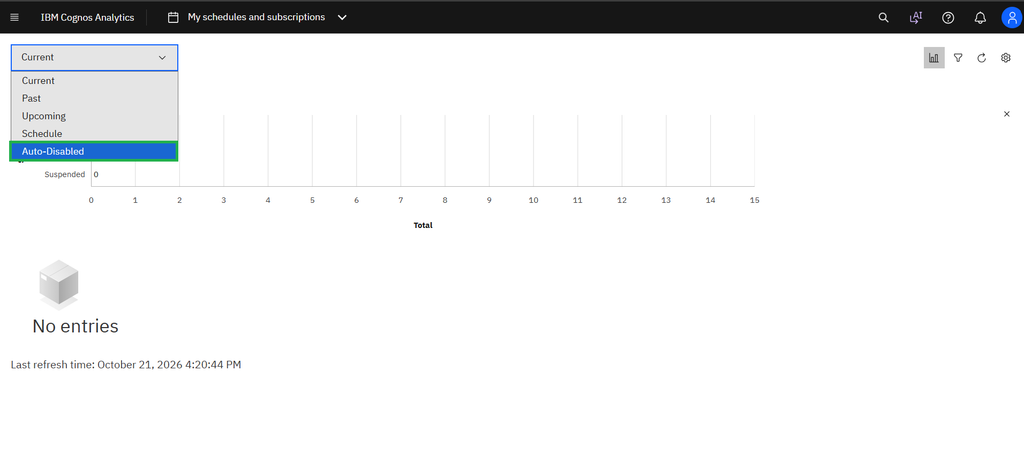
This section displays schedules that Cognos Analytics has automatically disabled after repeated failures.
Step 2: Configure the Failure Threshold
Administrators can set the number of consecutive failures allowed before a schedule is automatically disabled.
- Open the Auto-Disabled view.
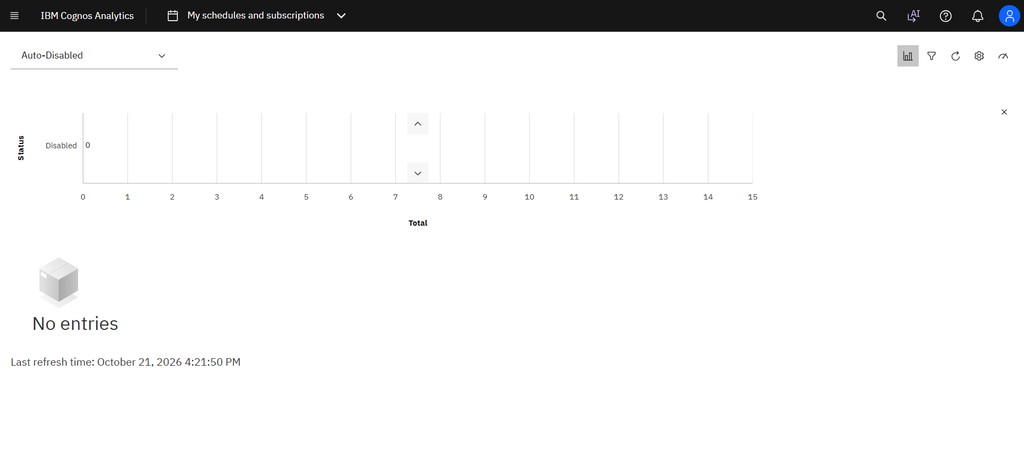
2. Click the threshold button.
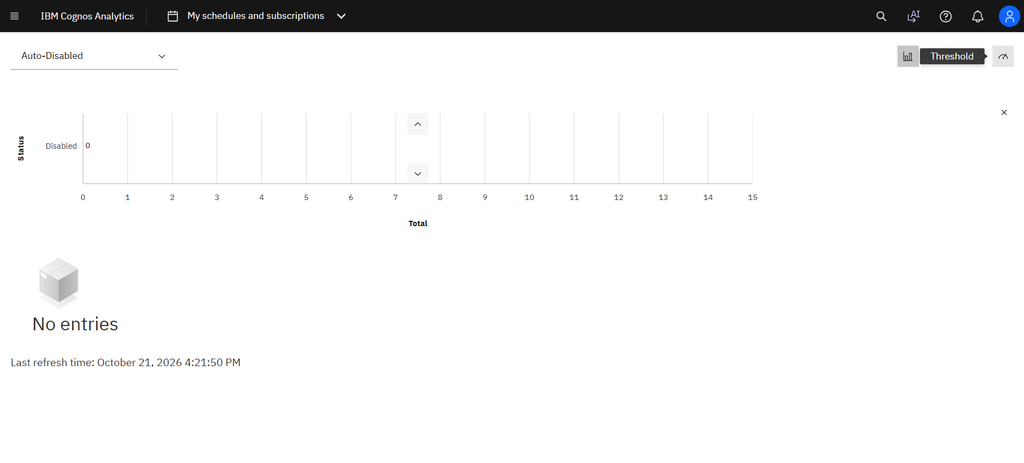
3. Enter the required failure threshold.
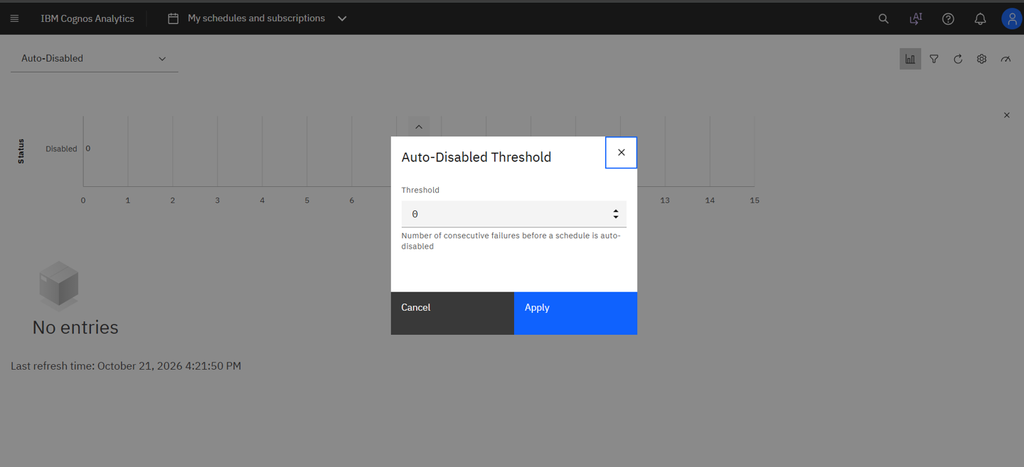
4. Save or apply the setting, if prompted.
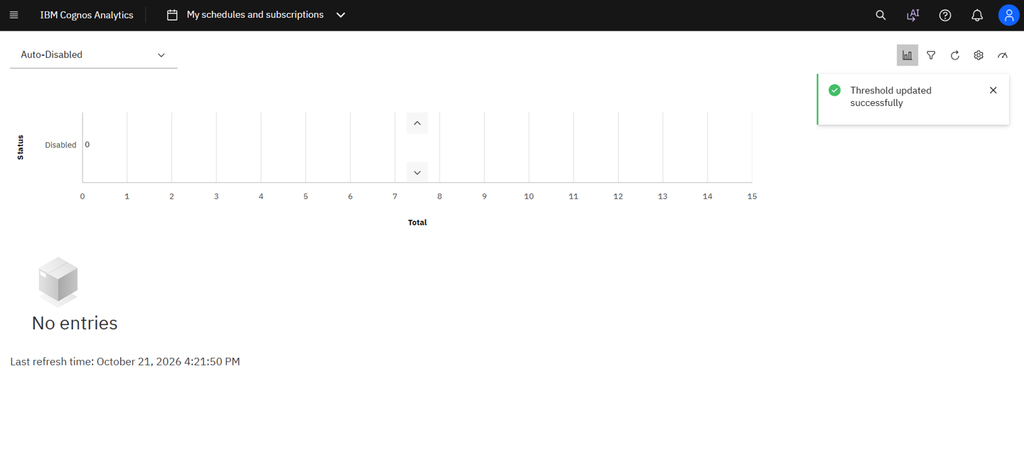
The threshold can be set from 1 to 100.
- Example: If the threshold is set to 3, a schedule is automatically disabled after three consecutive failures.
- Disable the feature: Set the threshold to 0 to turn off automatic disabling.
Note: The threshold applies to all schedules in the environment.
Step 3: Review Failed Schedules
When a report schedule reaches the configured failure threshold, IBM Cognos Analytics automatically disables it and sends an email notification.
Administrators can review disabled schedules in the Auto-Disabled section under Profile → My Activities and Schedules. Review the available schedule details and investigate the cause of the failures, such as data source connectivity or report configuration issues.
Step 4: Re-Enable a Disabled Schedule
After resolving the underlying issue, you can re-enable the disabled schedule using the available schedule actions in Cognos Analytics.
Important: Changing the failure threshold does not automatically re-enable schedules that have already been disabled. Re-enable them separately after confirming that the issue has been resolved.
Best Practices
- Monitor email notifications for failed schedules.
- Investigate repeated failures before re-enabling schedules.
- Set an appropriate failure threshold for your reporting environment.
- Test re-enabled schedules to confirm that they run successfully.
- Review the Auto-Disabled section regularly.
Conclusion
The automatic disable feature in IBM Cognos Analytics helps administrators manage failed report schedules more efficiently. By stopping schedules after repeated failures, it prevents unnecessary retries and helps protect system resources.
Configuring the failure threshold, reviewing notifications, and re-enabling schedules after fixing the underlying issue helps maintain a reliable reporting environment.